Carry actions to the next one
At each one-on-one, confirm last time's actions as done or not done. Anything not done carries over to the new list so nothing gets lost.
The actions you agree at a one-on-one are what you both said you'd do before the next one. Lifetick brings them back at the next one-on-one so you can go over them together.
Between one-on-ones
Your team member can tick their own actions off as they do them, on their My Manager page or in What we agreed on iPhone. A ticked action isn't confirmed yet. You confirm it together when you next meet.
Confirm last time's actions
- Open the next one-on-one. At Prepare you see last time's actions under Actions from that date, marked you'll confirm these in the meeting. Each has a tag showing who owns it: the person's name or You.
- Start the one-on-one. Choose Start the one-on-one.
- Choose Done or Not done. Do this for each action as you talk it through. An action the person already ticked shows ticked it and the date.
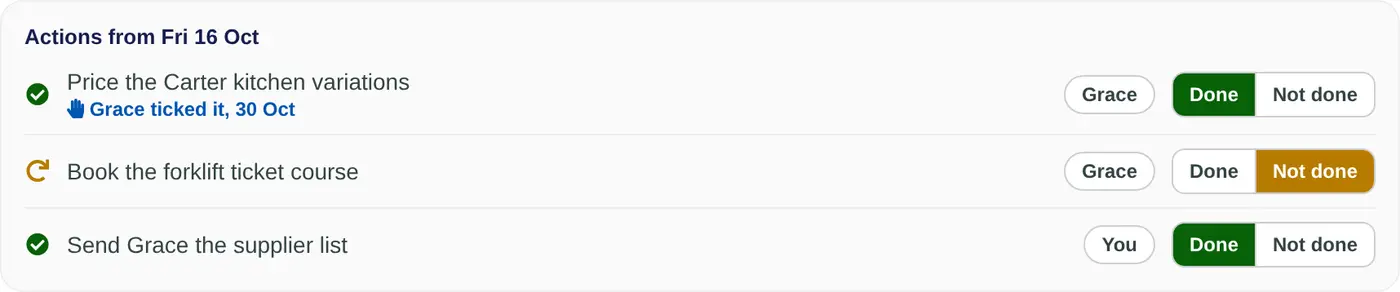
Carry over what wasn't done
When you choose Not done, Lifetick adds the same action to this one-on-one's Actions, with not done last time beside it. Change its wording or owner if the plan has changed, or remove it with the cross if you've dropped it.
Add any new actions under it, set the Next one-on-one and choose Finish and share with the person.
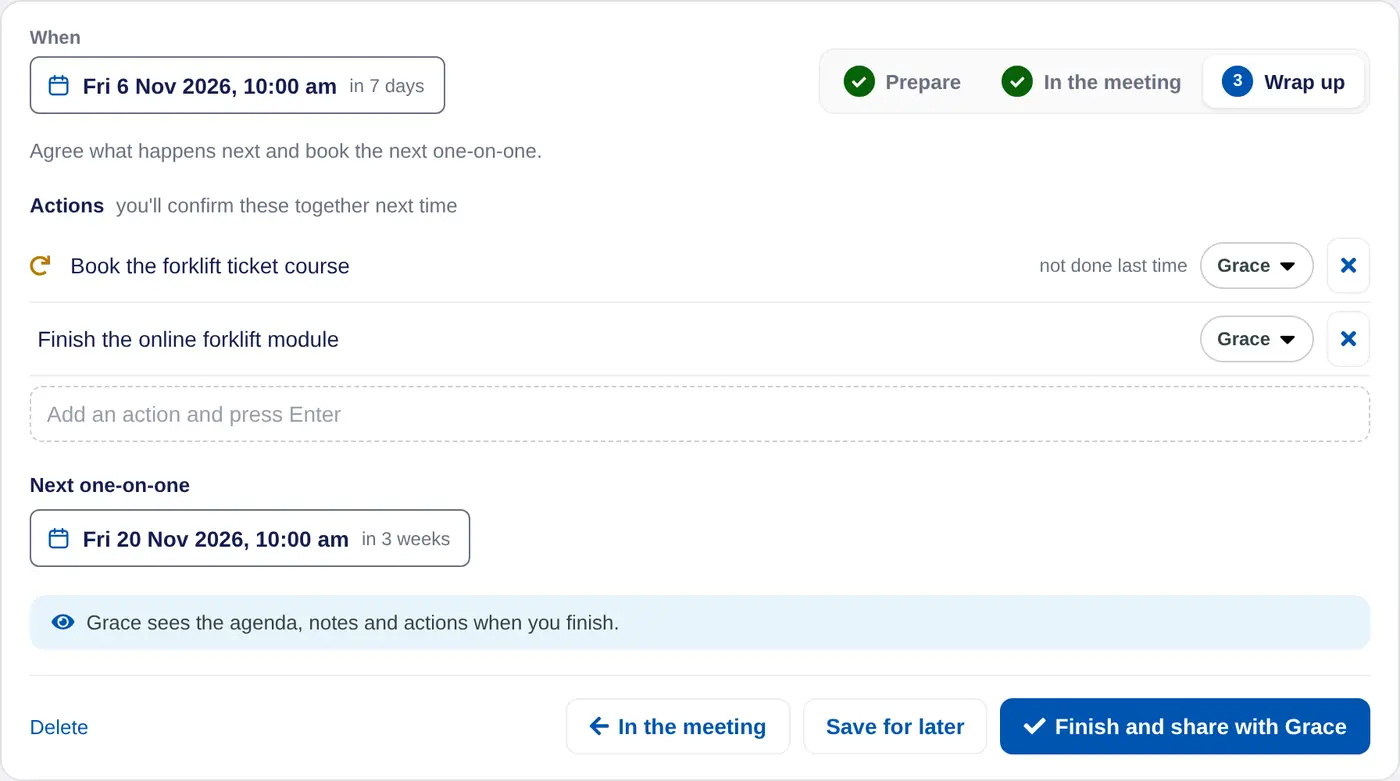
Only the last one-on-one's actions come up to confirm. Confirm them each time so none are left behind.
See how actions are going
On the One-on-ones tab, Actions done, last 3 one-on-ones shows how many of the confirmed actions were done, such as 4 of 5. Each calendar page under Done is coloured by how its actions went, and shows how many are still to confirm.
In a coaching account, coach and client carry actions between sessions. In a school account, teacher and student carry them between mentoring meetings.
