Prepare as a team member
Before a one-on-one, check the date, add what you want to talk about to the agenda and tick off the actions you agreed last time.
Your manager runs your one-on-ones in Lifetick. You can see what's coming up, add your own topics and keep track of what you agreed. It all sits on one page.
Open your manager's page
On the web, choose My Manager in the menu. Your one-on-ones and check-ins show newest first. Use One-on-ones at the top to see only one-on-ones.
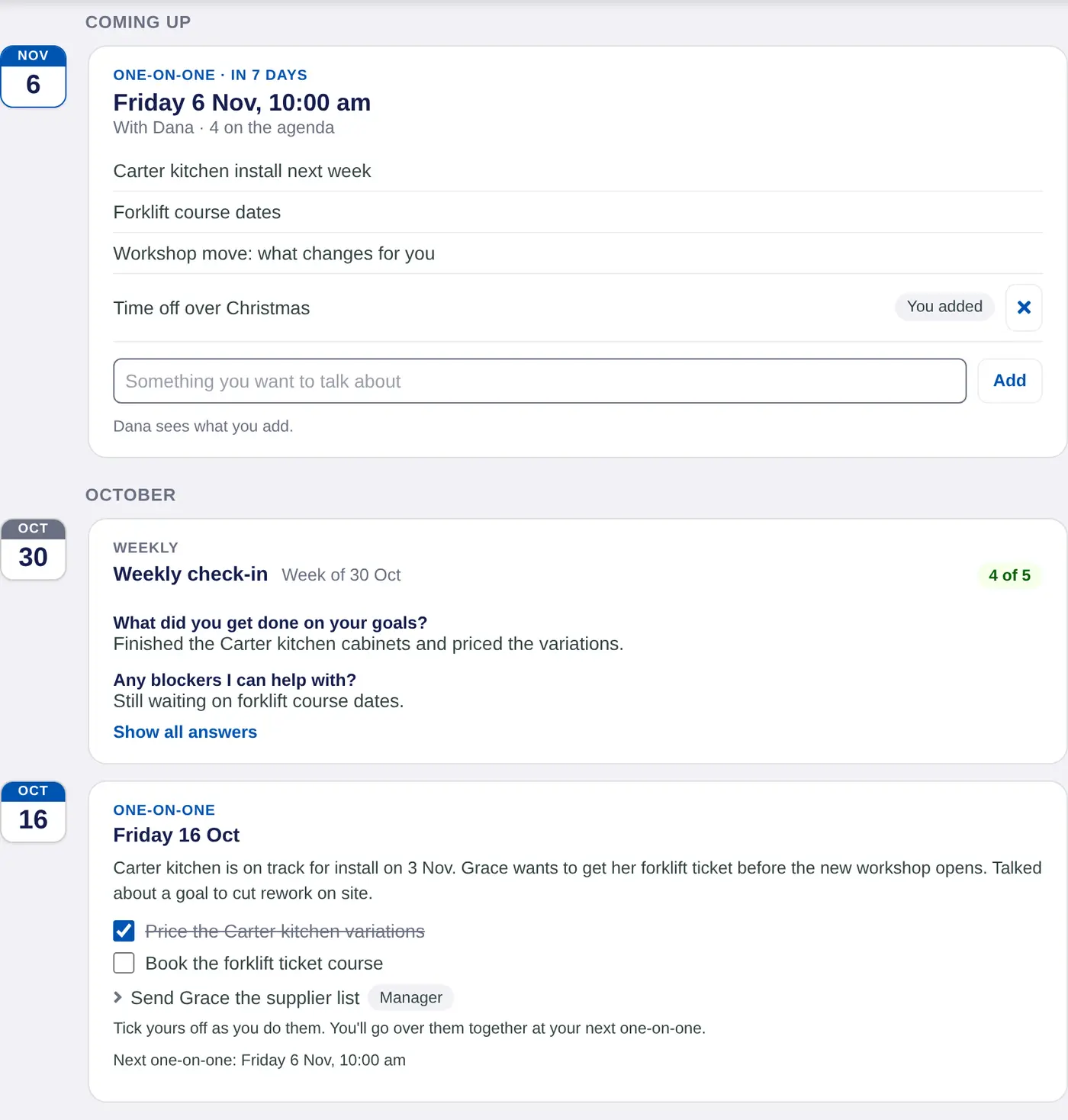
When your manager has set the date of your next one-on-one, it shows at the top under Coming up. Until they share the agenda, it says the agenda will show there when they do.
Add to the agenda
When your manager shares the agenda, you get a message from them and the agenda shows under Coming up.
- Read the agenda. It lists what your manager wants to cover.
- Add your own. Type in Something you want to talk about and choose Add. Your items show You added.
- Remove one if you change your mind. Choose the cross beside it. You can only remove your own items.
Your manager sees what you add straight away, with your name beside it.
On iPhone, open your last one-on-one in Journal. The shared agenda is under Before then. Choose Something you want to talk about? to add an item, and Add to calendar to put the next one-on-one in your calendar.
Tick off your actions
Your last one-on-one shows its notes and the actions you both agreed. Tick yours off as you do them. Actions with a Manager tag are your manager's to do.
A ticked action isn't final. You go over each one together at your next one-on-one, where your manager marks it Done or Not done. See Carry actions to the next one.
On iPhone the actions are under What we agreed in the same one-on-one.
What your manager can see
Your manager sees the items you add, the actions you tick and the check-ins you send. For more, see Who can see your answers.
In a coaching account this page is My Coach and you're the client. In a school account the student prepares for mentoring meetings with their teacher.
