Share an agenda before you meet
Share a one-on-one's agenda so your team member gets a message, sees the date and adds what they want to talk about before you meet.
A one-on-one goes better when both of you come ready. Share the agenda a few days before and your team member can add their own items.
Share the agenda
- Open the one-on-one. On Today, choose Prepare in the Coming up card. Or open the person from Team Members, choose the One-on-ones tab and pick it under Coming up.
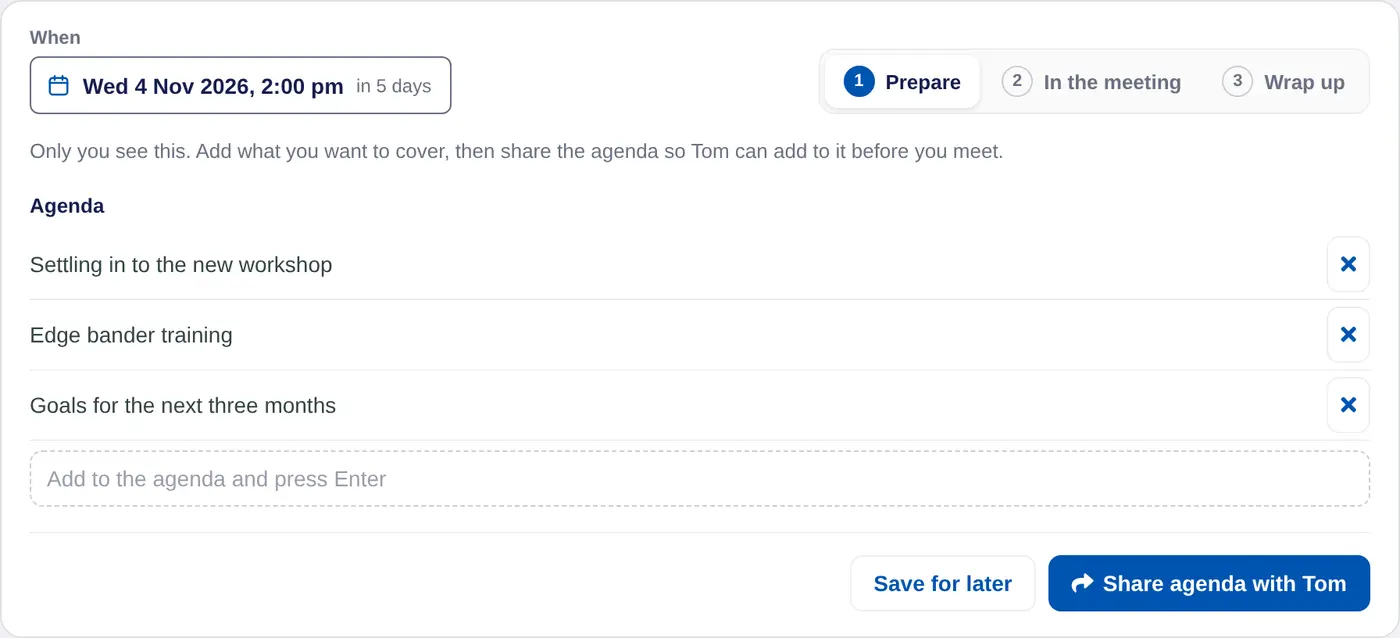
- Add what you want to cover. Type under Agenda and press Enter for each item.
- Share it. Choose Share agenda with the person, for example Share agenda with Tom.
What your team member sees
They get a message from you saying you've shared the agenda for your one-on-one, with the date. It opens the agenda.
On their My Manager page they see the date, the agenda and a box to add Something you want to talk about. They can add up to 20 items and remove their own. They can't change or remove yours. On iPhone they see the agenda under Before then when they open their last one-on-one in their journal. See Prepare as a team member.
Your notes stay private. They see the notes and actions only when you finish the one-on-one.
See what they added
Open the one-on-one again. The line at the top says when you shared it and how many items they added, such as Grace added 1 item. Their items carry a Grace added tag. The calendar page under Coming up shows it too.
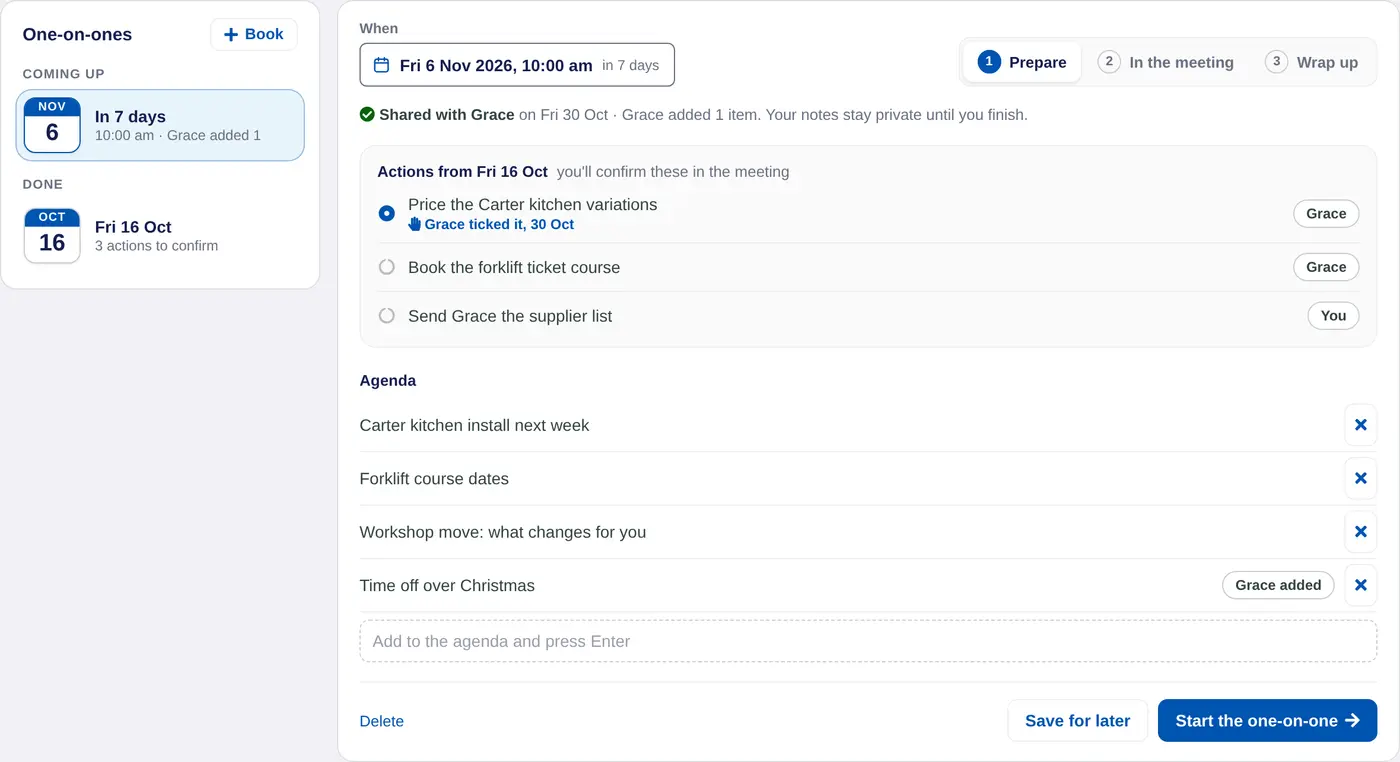
You can keep adding items or remove any item after you share. Choose Save for later to keep your changes. When it's time to meet, choose Start the one-on-one. See Keep notes and follow-ups.
You share an agenda once. Changes you make after that show on their page straight away, with no new message.
In a coaching account the client adds to a session's agenda. In a school account the student adds to a mentoring meeting's agenda.
