Schedule a one-on-one
Book a one-on-one with a team member from their page, pick a date and time, and find it again under Coming up on Today.
A one-on-one is a regular meeting between a manager and one team member. Lifetick keeps the agenda, notes and actions for each one in one place, on the team member's page. You book them on the web.
Book a one-on-one
- Open the team member. Choose Team Members in the menu, then the person.
- Open One-on-ones. Choose the One-on-ones tab. You can also choose Book or Prepare on the One-on-ones card of their Overview tab.
- Choose Book. The first time, the button says Book the first one-on-one and explains the three steps.
- Pick a date and time. Set them under When. The time shows in your own time zone.
- Add the agenda. Type under Agenda and press Enter for each item. Lifetick may suggest items from overdue tasks, recent check-in answers and goals coming due. Remove any you don't need.
- Save it. Choose Save for later to keep it to yourself, or Share agenda with the person to let them see it and add to it. See Share an agenda before you meet.
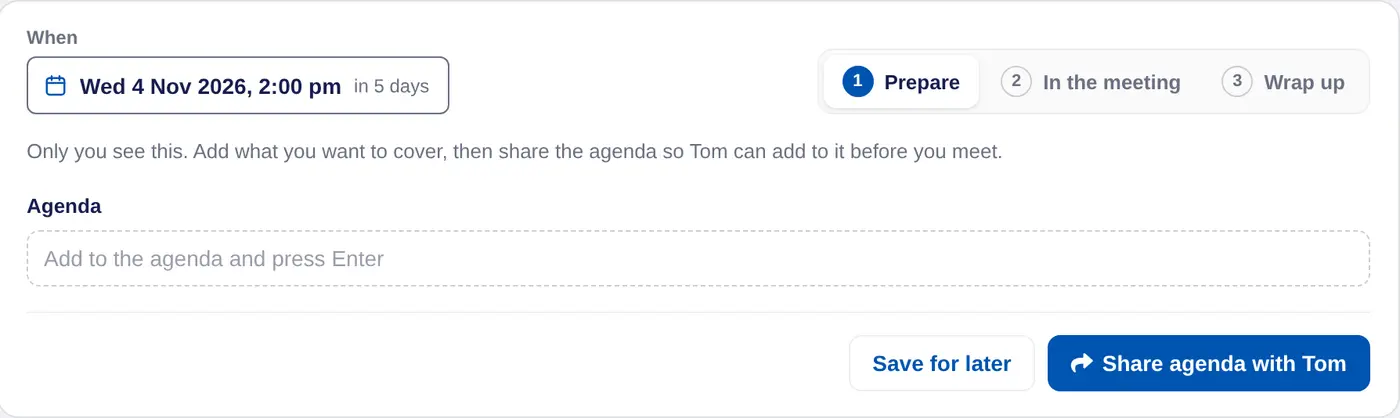
Until you share the agenda or finish the one-on-one, only you see it.
Find it again
Booked one-on-ones show as calendar pages on the One-on-ones tab, under Coming up. Past ones sit under Done.
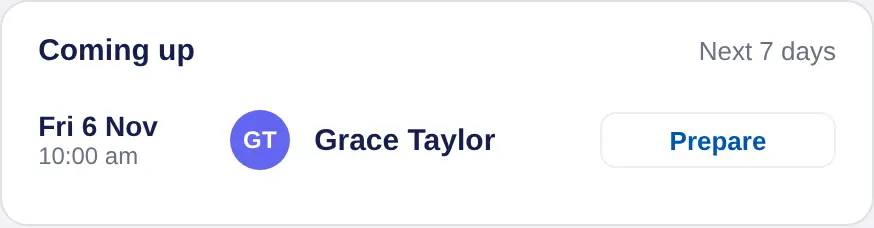
One-on-ones in the next seven days also show on Today, in the Coming up card. Choose Prepare to open one.
Book the next one as you finish
At the end of each one-on-one, the Wrap up step has a Next one-on-one date and time. Set it before you finish and the next one shows under Coming up, ready to prepare. See Carry actions to the next one.
To move a booked one-on-one, open it, change the date under When and choose Save for later. To remove one you no longer need, choose Delete.
Lifetick doesn't send calendar invites or reminder emails for one-on-ones. Team members see the date of their next one on their My Manager page, and on iPhone they can choose Add to calendar.
In a coaching account these are sessions with clients. In a school account they're mentoring meetings between teachers and students.
