Download a report as a PDF
Save the team Outcomes report as an A4 PDF for any group and period, to share with your leadership team or attach to a review.
You can download the team Outcomes report as a PDF. It has the same numbers you see on screen, for the people and period you've chosen.
Download it
- Open the report. Choose Reports in the menu. In a coaching account it's Outcomes, and in a school it's Progress report.
- Choose who. At the top, choose All my team members or one of your groups. Admins and super managers also have Everyone.
- Choose the period. Choose Month, Quarter or Programme, and use the arrows to go back to an earlier month or quarter.
- Download. Choose •••, then Download PDF.
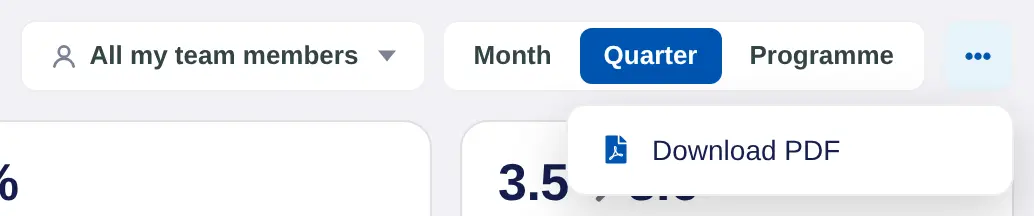
The file is named after who and when, such as All-my-team-members-Q4-2026.pdf.
What's in the PDF
The PDF is A4. It starts with your organisation's name, who it covers, the dates and how many people are in it. Then:
- Four numbers. Goals on track or completed, goals completed, the check-in response rate and the average mood out of 5.
- Goal progress by participant. Each person's goals, tasks done on time and engagement.
- Where goals sit. How goals spread across your core values.
- Highlights. A few plain sentences about the period.
Like the report on screen, it's totals and trends only. Journal text, check-in answers and private goals are never in it.
Before you send it
- A month or quarter that isn't finished yet covers the period so far. Download it again once it's over for the full picture.
- To report on one team or site, put those people in a group first. See Create groups.
Schools can use the same download for the end of a term. See Download a term report.
