Create groups
Sort your team members into groups such as teams or sites, then filter your list, your reports and your check-ins by group.
Groups let a manager split their team members into smaller sets, such as a site, a shift or a project team. Each manager has their own groups, and only their own team members go in them. A person is in one group at a time.
Make a group
- Open Team Members. Choose Team Members in the menu.
- Open Manage my groups. Choose Manage my groups at the top.
- Add a group. Choose Add group, pick a Colour and type a Name, such as "On the tools".
- Save. Choose Save. Add as many groups as you need.
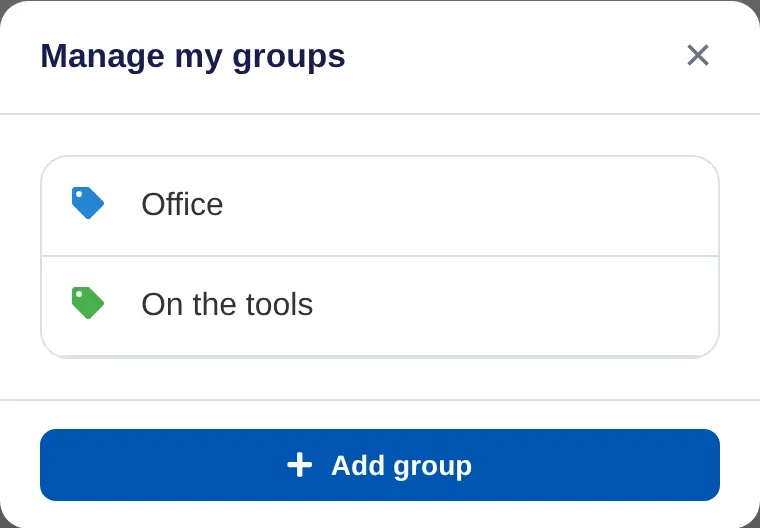
To rename or recolour a group, choose it in Manage my groups. To delete it, choose it and then Delete. Its people go back to Ungrouped.
Put people in a group
- Someone already on your team. Open them from Team Members, choose ••• and Edit profile. Choose the Group and Save. Admins can also do this from People and invites, for people who report to them.
- New people. Pick the group under Add them to group when you create an invite link, or under Group when you add someone one by one. See Invite people with one link.
Each person's group shows as a coloured tag beside their name.

Use your groups
- Team Members. Sort by Group by groups, or choose a slice of the Groups chart to show one group.
- Reports. Choose a group in the menu at the top to see the report for just those people, or download it as a PDF. See The team Outcomes report.
- Check-ins. Send a check-in to one or more groups. See Different check-ins for groups.
In a coaching account, groups hold clients. In a school, a teacher's groups are often their mentor groups.
