Choose trackers for your dashboard
Pick which trackers show on your dashboard's Log today card, so the ones you use most are a tap away.
Your dashboard has a Log today card for logging trackers without opening the journal. You choose which trackers appear there. The journal always shows all of them.
Trackers need Premium. On the Free plan, the card offers Upgrade now.
Show or hide a tracker
- Open your trackers. Go to Journal and choose Edit trackers on the Log today card.
- Choose the tracker. In Configure trackers, choose the tracker you want to change.
- Tick or untick. Tick Show this tracker on my dashboard to show it, or untick it to hide it.
- Save. Choose Save.
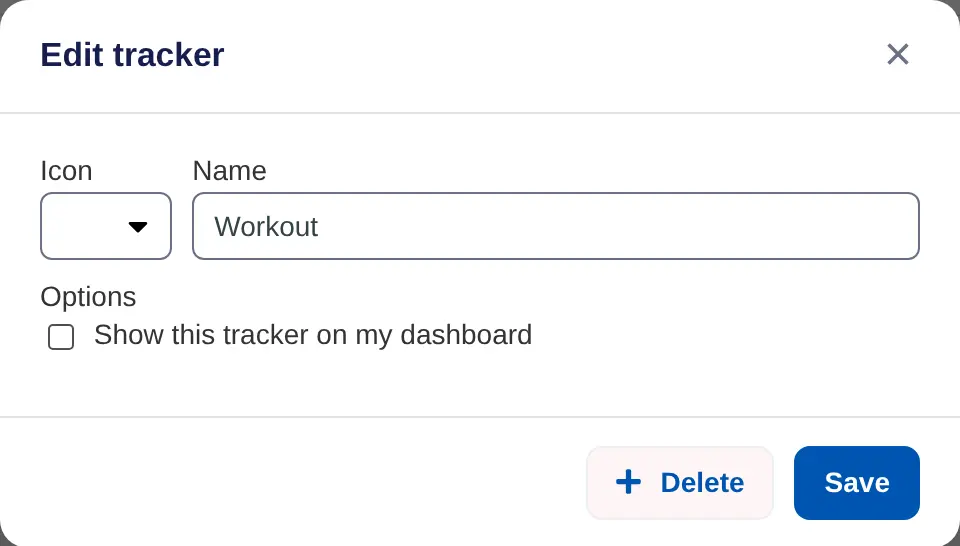
New trackers show on the dashboard unless you untick the box when you add them.
Log from your dashboard
Go to Dashboard. Each tracker on the Log today card shows its total or average and when you last logged it. Choose +1, Yes or No, or type a value and choose the tick. Trackers at the top of the card takes you to the journal.
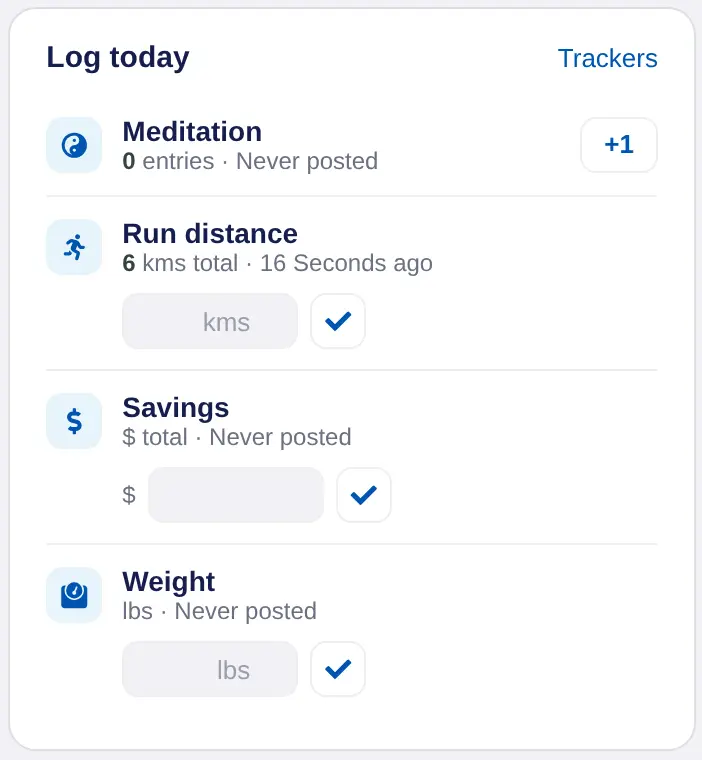
If no trackers are chosen, the card says so and points you to the journal.
On iPhone, turn on Show on my dashboard for a tracker in Configure trackers. Those trackers show on Home. If none are turned on, Home shows your first two.
