Create a tracker and log values
Track anything you want to measure, like distance run, money saved or glasses of water, and log it in a tap. Trackers need Premium.
Trackers record the numbers and habits behind your goals. Log a value each day and see it charted in Reports. New accounts start with Meditation, Savings, Weight and Workout.
Trackers need Premium. On the Free plan, the journal shows Upgrade to get trackers.
Create a tracker
- Open your trackers. In Journal, choose Edit trackers on the Log today card. Configure trackers opens.
- Add one. Choose Add tracker.
- Pick an icon and name it. Choose an Icon and fill in Name, such as "Run distance".
- Choose the kind of data. Under What kind of data would you like to record?, choose Text, Boolean (Yes or No), Count, Numeric value or Money.
- Choose how to report it. For a numeric value, choose Running total (such as hours studied) or Average (such as weight). Then pick a Unit of measurement, or other to type your own.
- Save. Leave Show this tracker on my dashboard ticked to log it from your dashboard too. Choose Save.
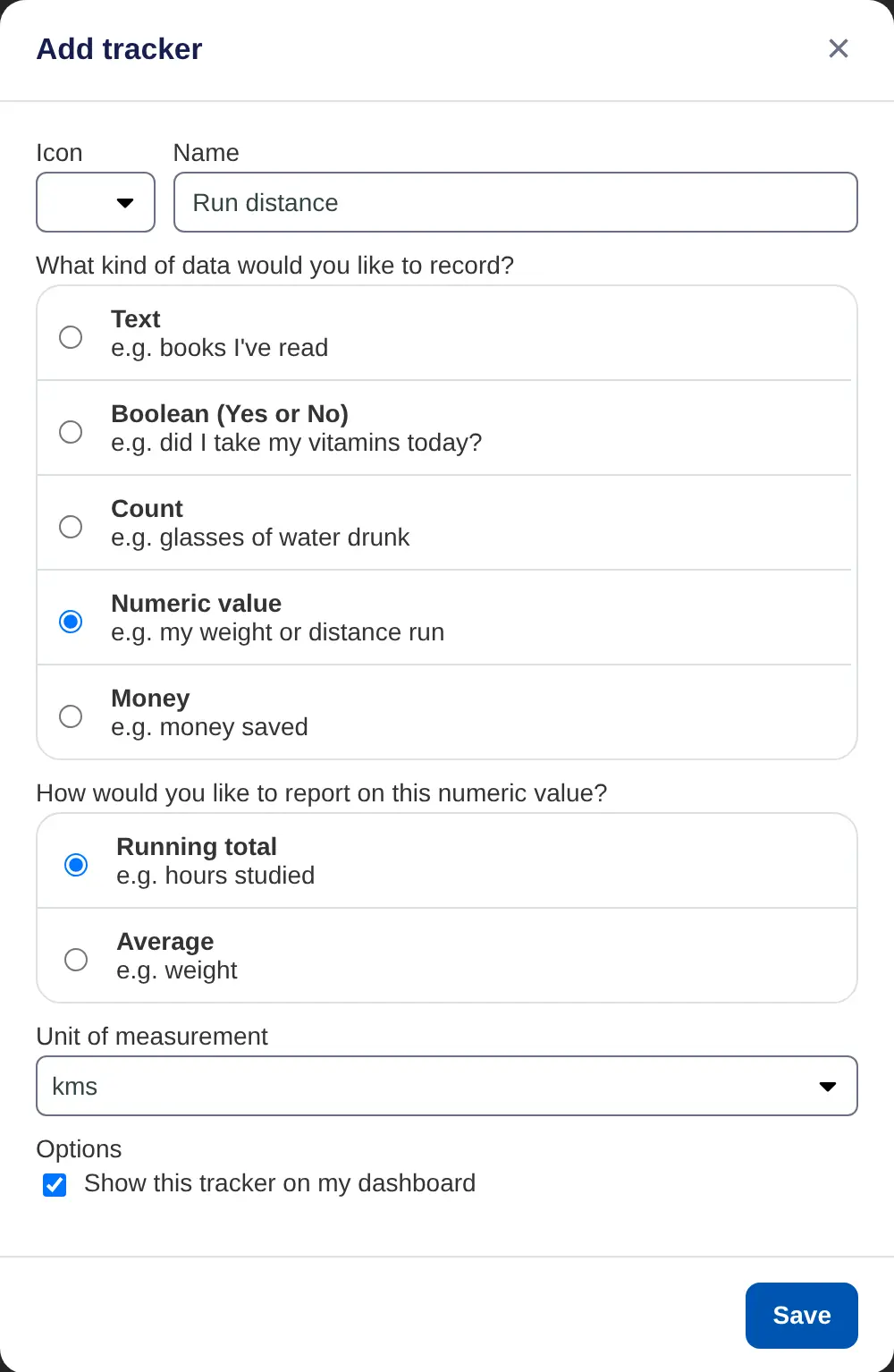
The kind of data and unit can't be changed after you save. To rename a tracker or delete it, choose it in Configure trackers. Deleting a tracker keeps the values you've logged in your journal.
Log a value
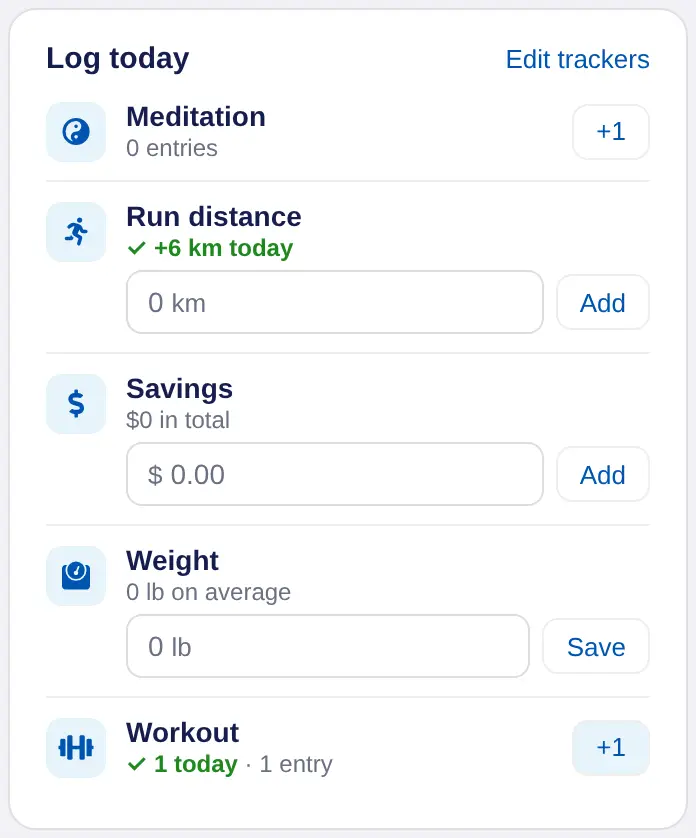
In Journal, use the Log today card:
- Count: choose +1.
- Yes or no: choose Yes or No.
- Numeric value, Money or Text: type the value, then choose Add or Save.
A tick shows what you've logged today. To log for an earlier day, choose the day in the calendar first. The card changes to Log for that day.
On iPhone, open Journal and tap Log a tracker. To add a tracker, tap •••, then Configure trackers and Add tracker.
