Write in your journal
Write a quick note about how today went, use a prompt to get started, and find your notes and goal activity by day.
Your journal is where you note how things are going. A few lines a day is enough. Lifetick also adds your goal activity, such as tasks you complete, so you can look back on both together.
Write a note
- Open Journal. Choose Journal in the menu.
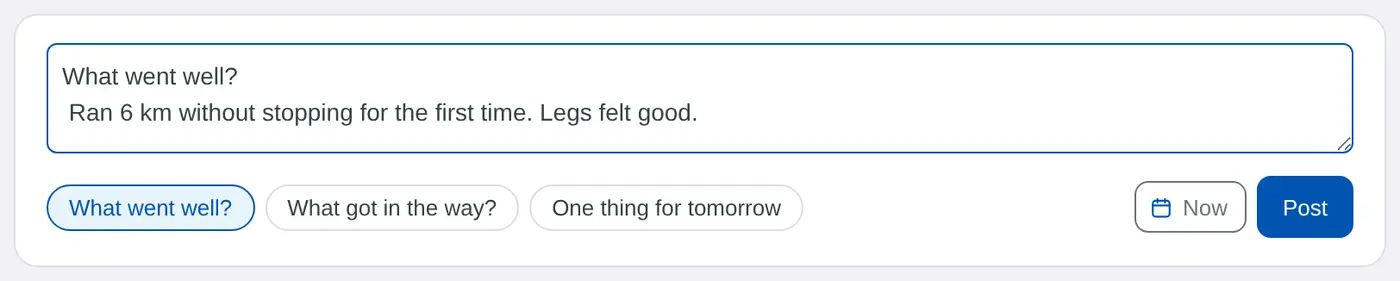
- Write. Type in How did today go? Stuck? Choose a prompt such as What went well?, What got in the way? or One thing for tomorrow to add it to your note.
- Post it. Choose Post. To date it earlier, choose Now first and pick the day and time.
Find past entries
- Your entries are grouped by day, newest first.
- Choose Everything, Notes or Activity to filter what you see.
- Choose a day in the calendar to see its week.
- On this day brings back a note you wrote a month, three months, six months or a year ago.
Change or delete a note
Point at a note to show Edit and Delete. Edit opens the note so you can change the words or the date. Delete asks you to confirm first.

If you're in a team or school, your notes stay private to you. Your manager or mentor doesn't see them.
On iPhone, open Journal and tap Write a note. To change a note, swipe it left or long press it, then tap Edit.
