Export your data
Download your tasks, goals, journal and trackers as CSV files from Reports. Admins can download the whole organisation's goals and journal activity.
Lifetick doesn't make one file with everything in your account. Instead, each report can be downloaded as a CSV file, which opens in Excel, Numbers or Google Sheets.
Download your own data
- Open Reports. Choose Reports in the menu.
- Open a report. Choose a card: tasks completed, goals completed, journal entries, what's coming up, or one of your trackers.
- Pick the dates. Choose Week, Month, Quarter or Year, or Custom for your own start and end dates.
- Download it. Choose Export entries for every entry in those dates, or Export totals for a total for each day, week or month. The coming up report has a single Export.
Repeat for each report you want. For everything since you started, choose Custom and set the start date back to when you joined.
Tracker reports need Premium, or a team or school account.
On iPhone, open the report on the Reports tab and tap the export button at the top, then Export entries (CSV) or Export totals (CSV). Choose where to save the file.
Download your organisation's data
Admins of a team or school account can download data for everyone in it.
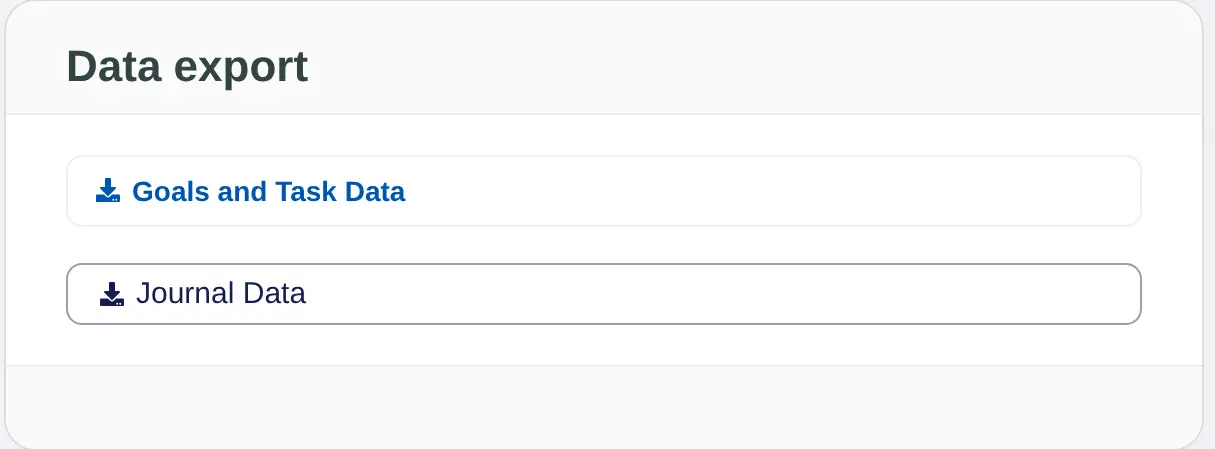
- Open Data export. Choose Data export in the menu under your organisation's name.
- Choose a file. Goals and Task Data lists each person's goals that have tasks, by core value, with every task's notes, status and due date. Journal Data lists activity, such as tasks done and goals added, with the person and the date and time.
Both files leave out goals people have marked private, and activity on them. Journal notes and tracker values aren't included, because they're private to each person.
Need something else?
For a copy of other data, such as check-in answers, email [email protected] from the email address on the account.
