Friday reflections
Send your students four short questions every Friday afternoon, then read and reply to their answers on Today.
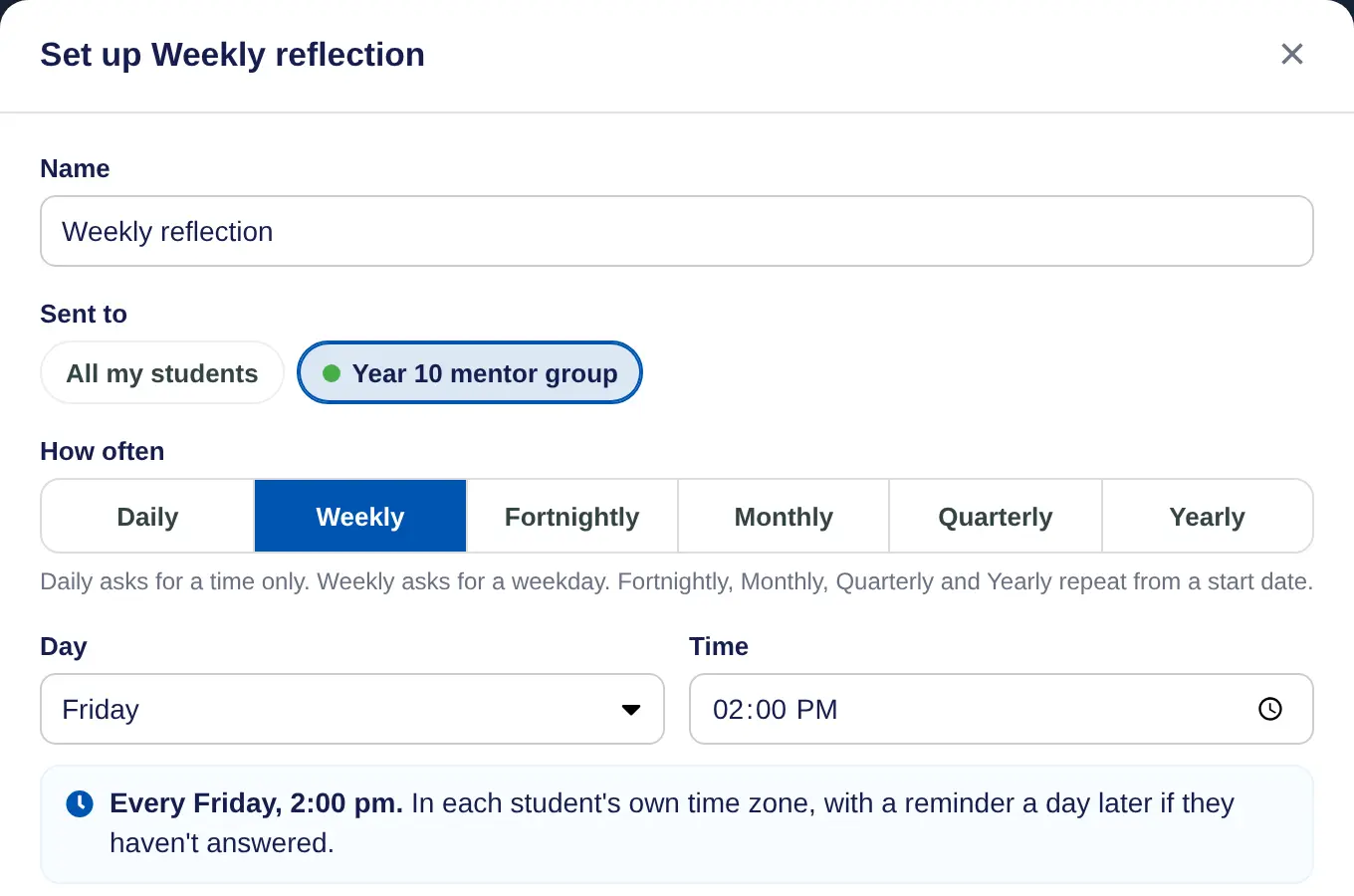
A reflection is a few questions your students answer on a schedule. The Weekly reflection template goes out Every Friday, 2:00 pm and asks:
- How did this week go? (a 1 to 5 scale)
- What did you finish on your goals?
- What was hard this week?
- What will you focus on next week?
You can change any of it. Set it up once on the web and it goes out by itself.
Send it to your mentor group
- Start a new one. Go to Today, find Scheduled reflections and choose New.
- Pick Weekly reflection. It's under Every week. It's on as soon as you pick it.
- Choose who gets it. Under Sent to, choose your group, or All my students.
- Check the day and time. Day is Friday and Time is 2:00 pm. The line under them sums it up.
- Save. Change the questions if you like, then choose Save.
Or send it to the whole school
Admins can send one reflection to everyone. Go to Reflections, choose Weekly reflection under Start from a template, and under Who gets it keep Everyone at your school, or choose some teachers' students. Each teacher still reads their own students' answers. Admins see how many answered, not the answers.
Under Settings on that page, Teachers can add their own lets teachers send their own as well, and Teachers answer these too sends it to teachers, with their answers going to the admins.
Read and reply
- Each student gets it in their own time zone, with an email. If they haven't answered, a reminder goes a day later.
- Students answer on the web or in the iPhone app.
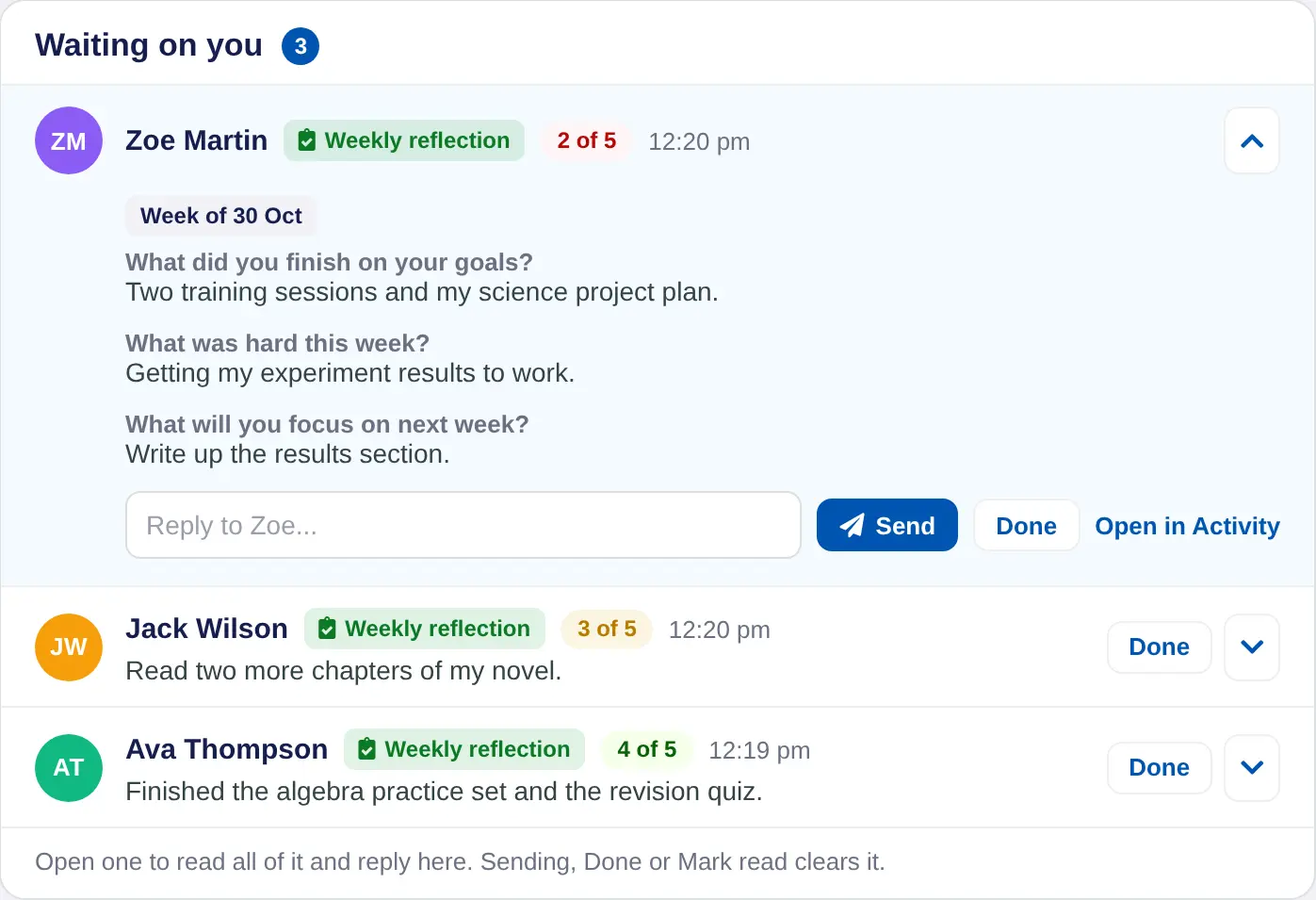
- Answers arrive on Today under Waiting on you. Open one to read it, write a reply and choose Send, or choose Done.
- Scheduled reflections shows how many have answered. Remind nudges the rest.
To change or stop your own one, choose Edit on it in Scheduled reflections. Pause stops it for a while, Archive stops it and keeps every answer, and Send now sends it straight away.
