Set up a mentor group
Make a group for your mentor students, put them in it and use it to send reflections and read their progress.
A mentor group is a group of your students, such as Year 10 mentor group. Groups belong to the teacher who makes them, and each student is in one group at a time. You set them up on the web.
If your school says mentor rather than teacher, an admin can change the word in Branding and words. See Change the words your team uses.
Make the group
- Open your groups. Go to Students and choose Manage my groups.
- Add a group. Choose Add group, pick a Colour and type a Name.
- Save it. Choose Save. The group now shows in Manage my groups.
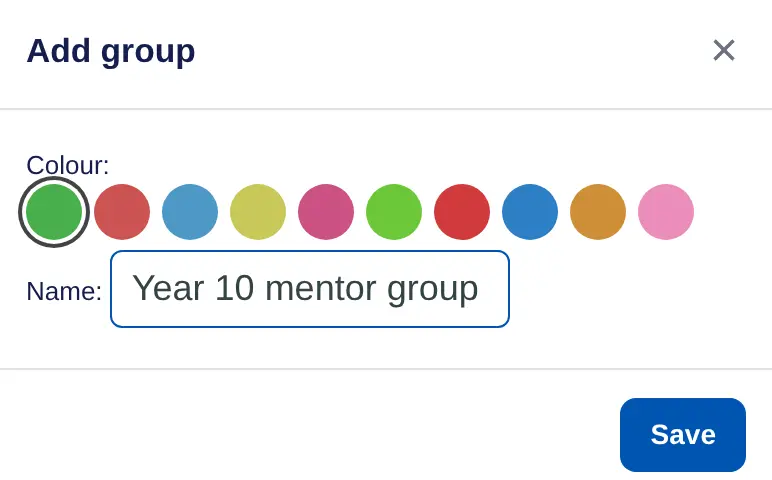
To rename a group, choose it in Manage my groups. Delete removes the group, and its students stay with you, ungrouped.
Put students in it
New students. Choose Invite on Students, set Add them to group to your group and share the link. Everyone who joins with it lands in the group. See Invite people with one link.
Students you already have. For each one:
- Open the student. Choose their name on Students.
- Edit their profile. Choose •••, then Edit profile.
- Pick the group. Under Group, choose your group, then choose Save.
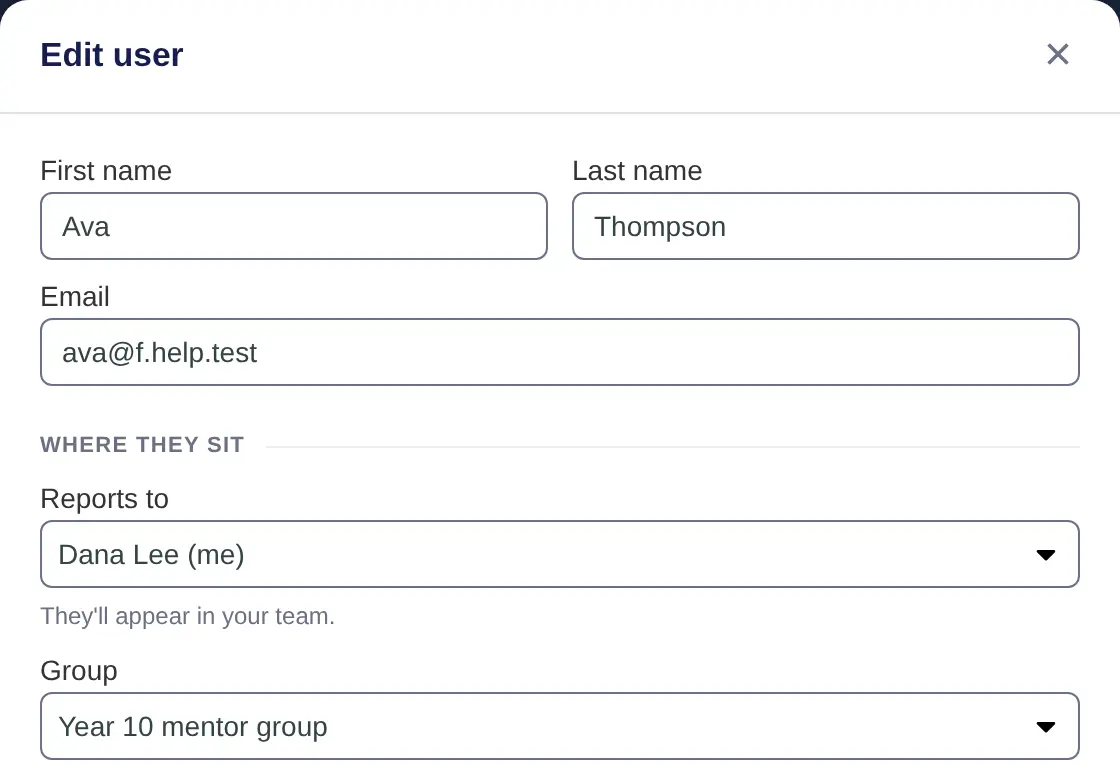
Reports to in the same window decides whose student they are. Leave it set to you.
Use the group
- Send it a reflection. On Today, find Scheduled reflections and choose New. Under Sent to, choose your group. See Friday reflections.
- Read its progress. On Progress report, choose the group in the menu at the top. See Download a term report.
Students don't see the group's name. They see you as their teacher, and what you can see. See What mentors can and can't see.
