Send your first check-in
Pick a starter or start from blank, choose the questions, the schedule and who gets it, then save. Answers come back to each person's manager.
A check-in is a few short questions your team members answer on a schedule you choose. You set it up once on the web, and it goes out on its own from then on.
Before you start
You need to be an owner or a manager on a Team account. Owners set up check-ins for the whole organisation. Managers can add their own for their team members, as long as the owner has left Managers can add their own turned on.
Start a new check-in
- Open check-ins. If you're an owner, choose Check-ins in the menu under your organisation's name, then New. If you're a manager, go to Today, find the Scheduled check-ins card and choose New.
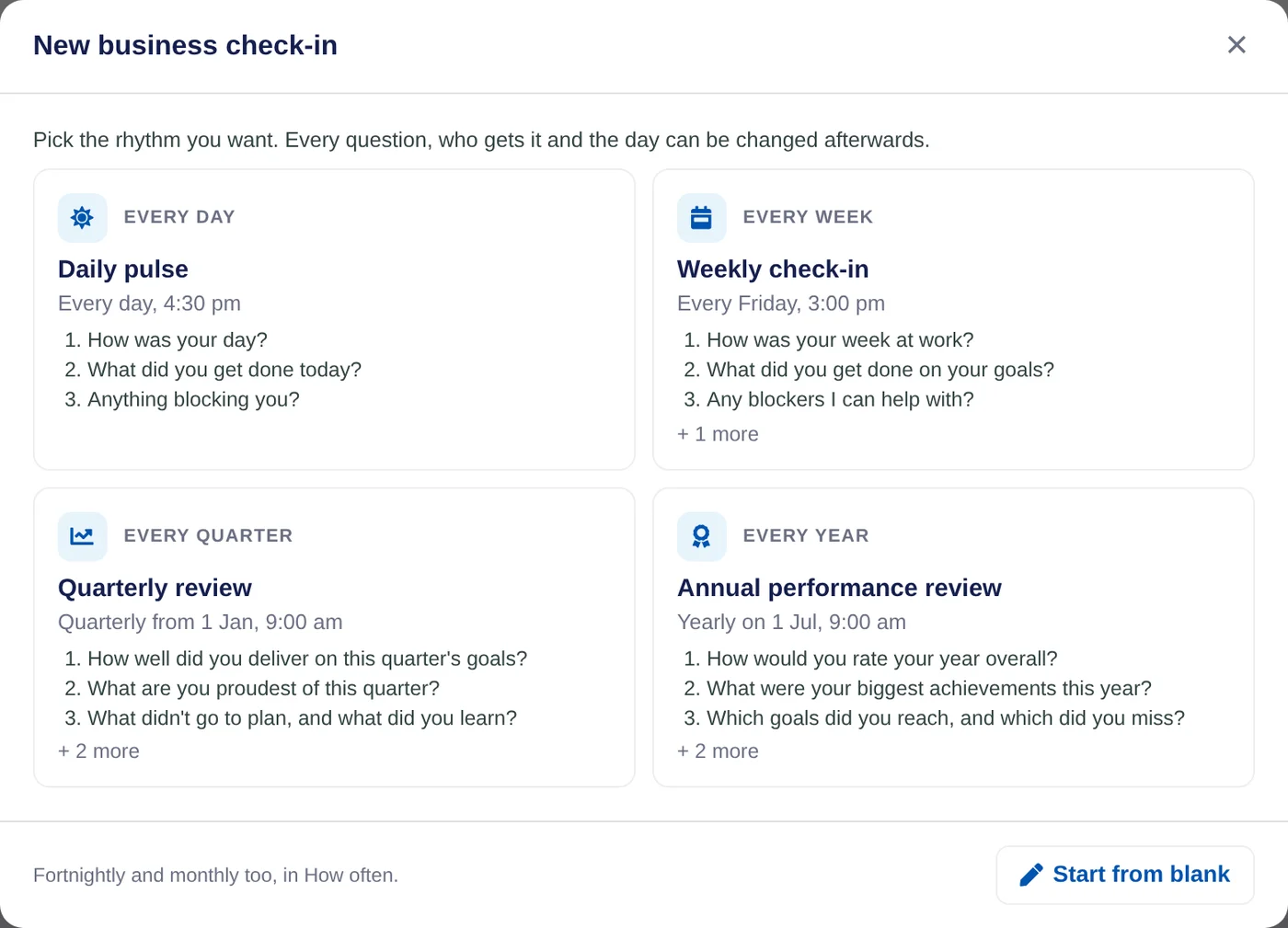
- Pick a starter or start from blank. There is one starter for each rhythm: Every day, Every week, Every quarter and Every year, each with its questions ready to go. Choose one, or choose Start from blank to write your own. You can change everything afterwards.
Choose who gets it and when
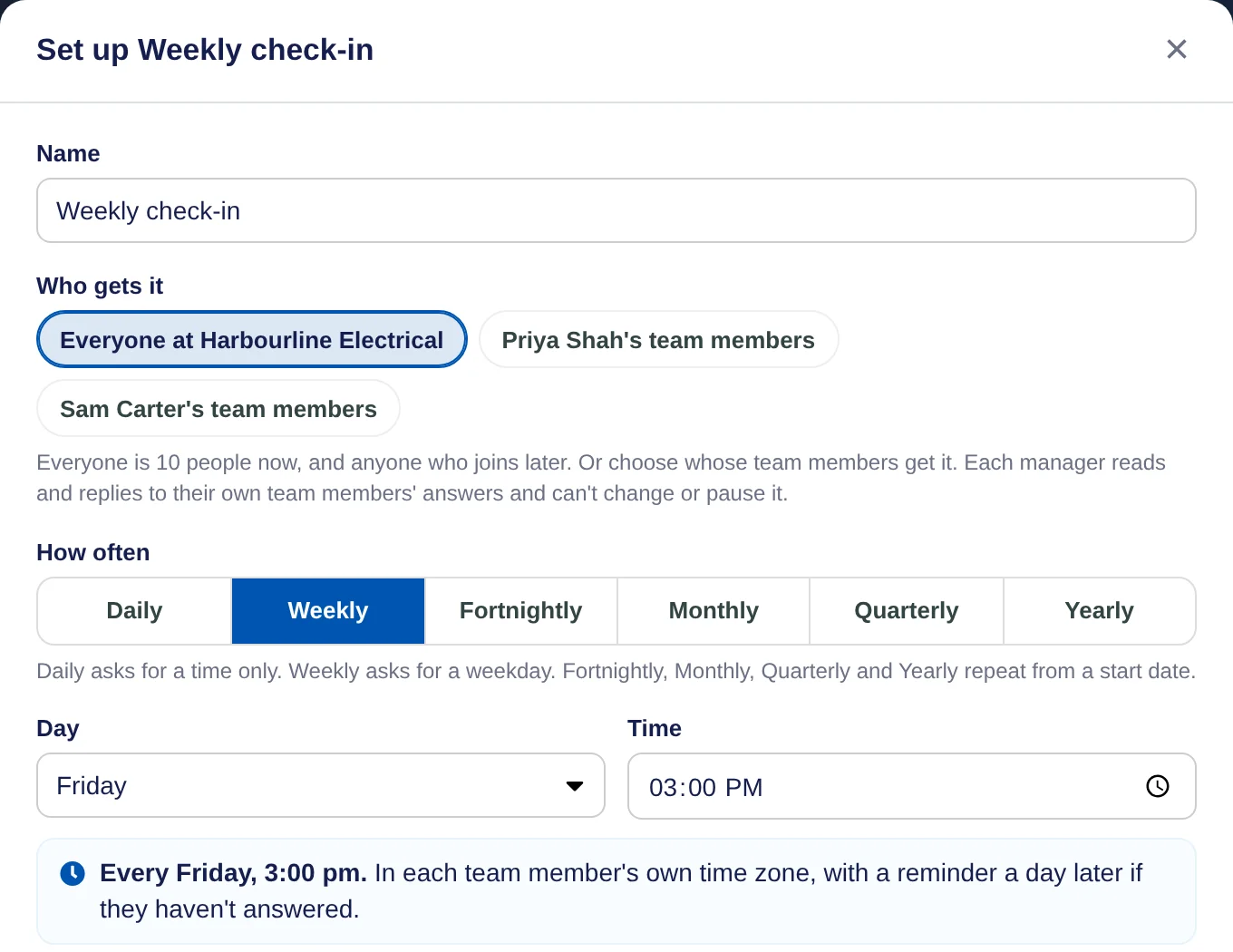
- Name it. The Name is what your team members see, such as "Weekly check-in".
- Choose who gets it. Owners see Who gets it: tick Everyone at your organisation, which includes anyone who joins later, or tick one or more managers' team members instead. Managers see Sent to: tick All my team members, or tick one or more of your groups. If you have no groups yet, it goes to all your team members.
- Set the schedule. Under How often, choose Daily, Weekly, Fortnightly, Monthly, Quarterly or Yearly. Then set the Day for weekly, or the Start date for fortnightly and longer, and the Time. The line under it sums it up, for example Every Friday, 3:00 pm.
Add the questions and save
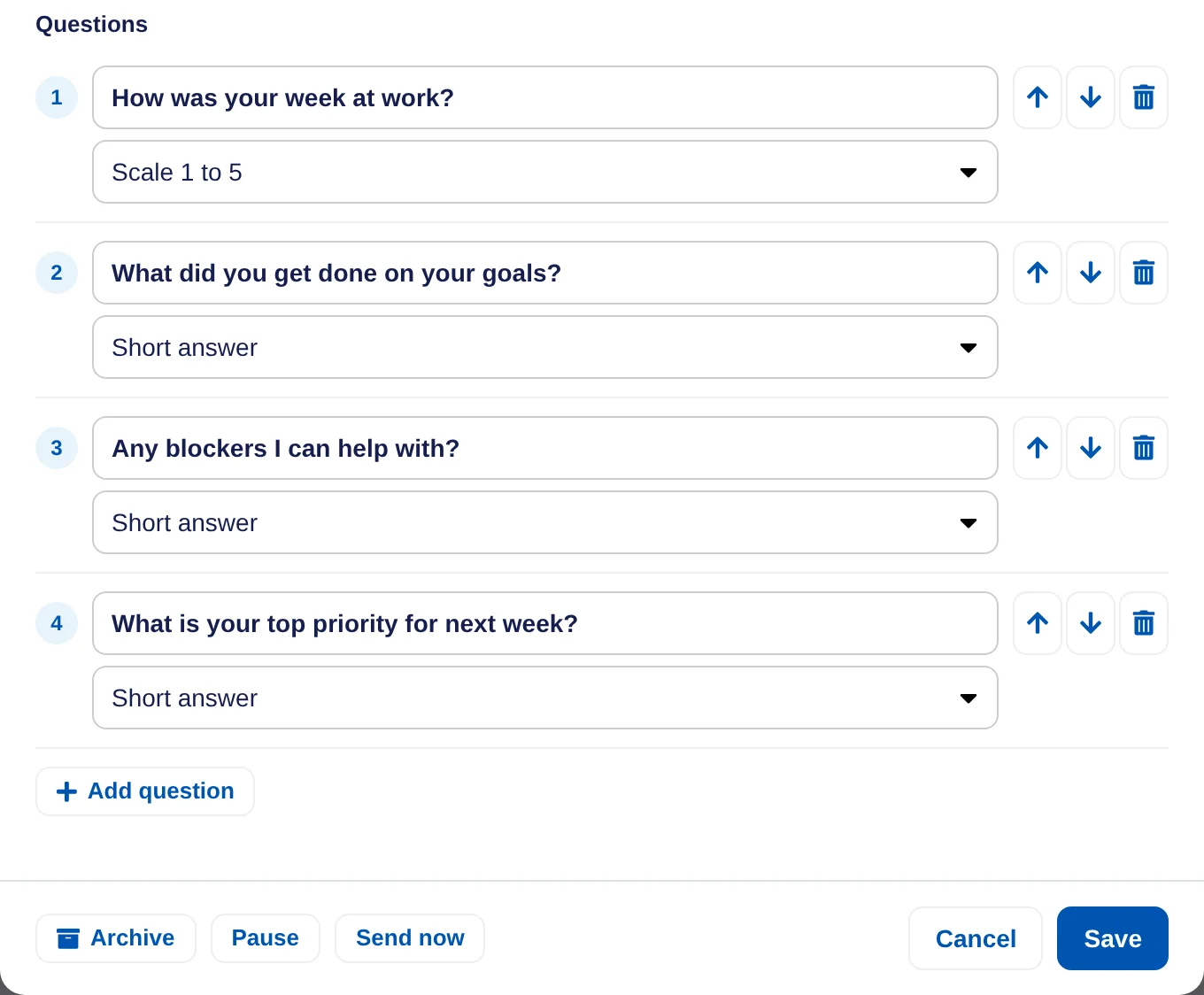
- Write the questions. Type each question and pick its answer type: Scale 1 to 5 or Short answer. Use Add question for another one, the arrows to change the order and the bin to remove one.
- Save it. Choose Save. The check-in is now on and goes out at the next time on its schedule.
Send it now instead of waiting
If you don't want to wait for the first scheduled time, choose Edit on the check-in, then Send now, and confirm with Send now. Everyone who gets it is emailed and can answer straight away. Save any changes first, because Send now doesn't save them.
What happens next
- Each person gets it in their own time zone, with an email. If they haven't answered, a reminder goes a day later.
- Team members answer on the web, from the email or their dashboard, or in the Lifetick iPhone app. They can save their answers for later before sending.
- Answers go to each person's own manager. Managers see them on Today under Waiting on you, where they can reply or mark them Done. Every answer also stays on the team member's Check-ins tab.
- Owners see how many people answered on the Check-ins page, not the answers themselves. If managers answer a check-in too, their answers go to the owners.
- To stop it for a while, open it with Edit and choose Pause. Changes to the questions apply from the next one sent, and earlier answers keep the questions as they were asked.
