Students without an iPhone
Students don't need an iPhone. Everything they do in Lifetick works in a web browser on a laptop, Chromebook, tablet or Android phone.
The Lifetick app is for iPhone and iPad, but students can do everything they need on the web: join the school, set goals, tick off tasks, write in their journal and answer reflections. It's the same account, so a student can switch to the app later and find everything there.
On a small screen, the menu moves to the bottom of the page.
Joining the school
- Open the invite link. Use the link from your teacher, in any browser.
- Create an account. Under New to Lifetick? Create your account, enter a first name, last name, email and password, then choose Create account and join.
- Or sign in. Students who already use Lifetick choose I already have a Lifetick account. Signing in with Google or Microsoft works too.
Each student needs their own email address. Lifetick sends reflections and reminders there.
Answering a reflection
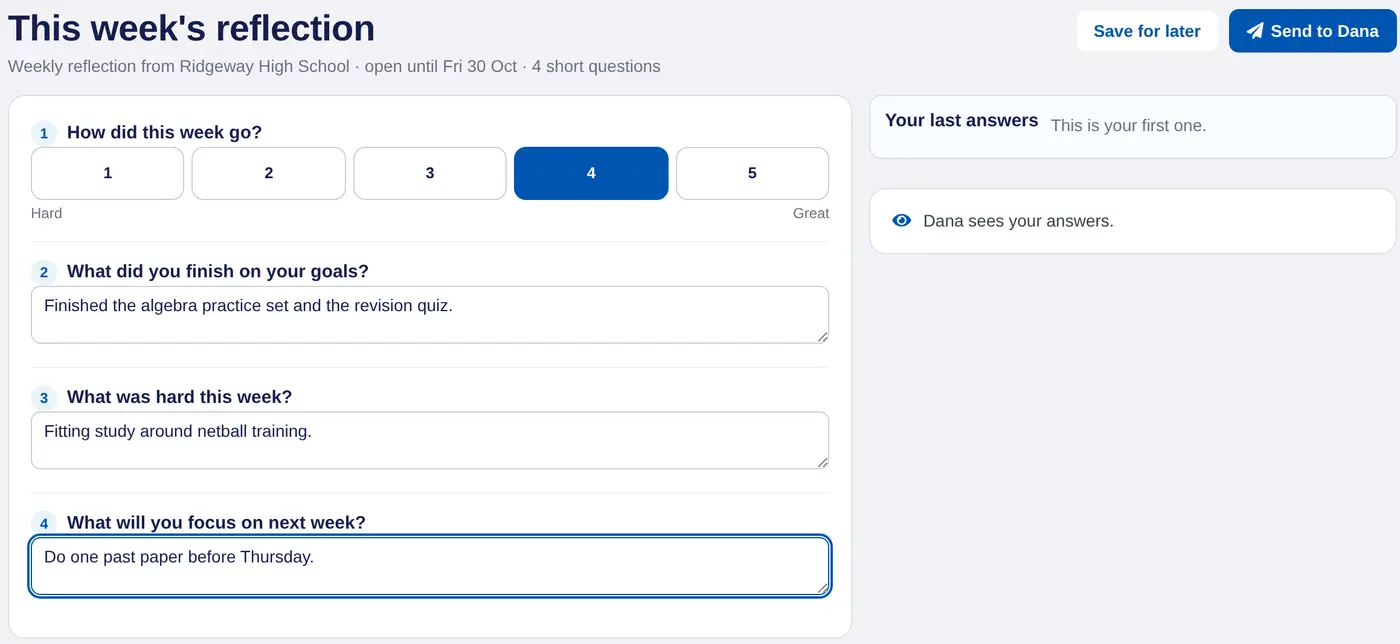
- Open it. Choose Answer now in the email, or Weekly reflection: answer now on the Dashboard. The button carries the reflection's name.
- Answer the questions. Tap a number from 1 to 5 for the scale question and type the rest.
- Send it. Choose Send to and the teacher's name. Save for later keeps the answers without sending them.
If a student hasn't answered, a reminder email goes a day later.
What's different without the app
- Reminders come by email, not as notifications on the phone. Students should check their school email, and add Lifetick to their safe senders if emails go to junk. See Not getting Lifetick emails.
- Trying Lifetick without an account is only in the iPhone app. Students joining a school always use an email address.
Everything their teacher sees is the same on the web and on iPhone. See What mentors can and can't see.
