Not getting Lifetick emails
Check your spam folder for mail from [email protected], make sure your email address is right, and check which emails you've turned off.
Lifetick emails you password resets, check-ins, task reminders and receipts. If one hasn't arrived, work through these checks.
Check your spam and other folders
- Search for the sender. Every Lifetick email comes from Lifetick, at [email protected]. Search your mail for it, including Spam, Junk and tabs such as Promotions.
- Mark it as safe. If you find one, mark it as not spam and add [email protected] to your contacts or safe senders, so the next one lands in your inbox.
- Ask your IT team. At work or school, a mail filter may hold emails back. Ask for mail from lifetick.com to be allowed.
Don't reply to these emails. Nobody reads the noreply address.
Check your email address
Choose the account menu at the top right, then Settings. Email address shows where Lifetick sends your emails. On iPhone, go to Home, tap Settings, then My account.
If you started on iPhone with Get started and haven't saved your account, it has no email address yet, so Lifetick can't email you. Tap Save your account in My account to add one.
Check what you've turned off
Under Preferences in Settings:
- Send me overdue task notification emails turns the overdue task emails on or off.
- Send me help, tips and offers for Lifetick turns tips and offers on or off.
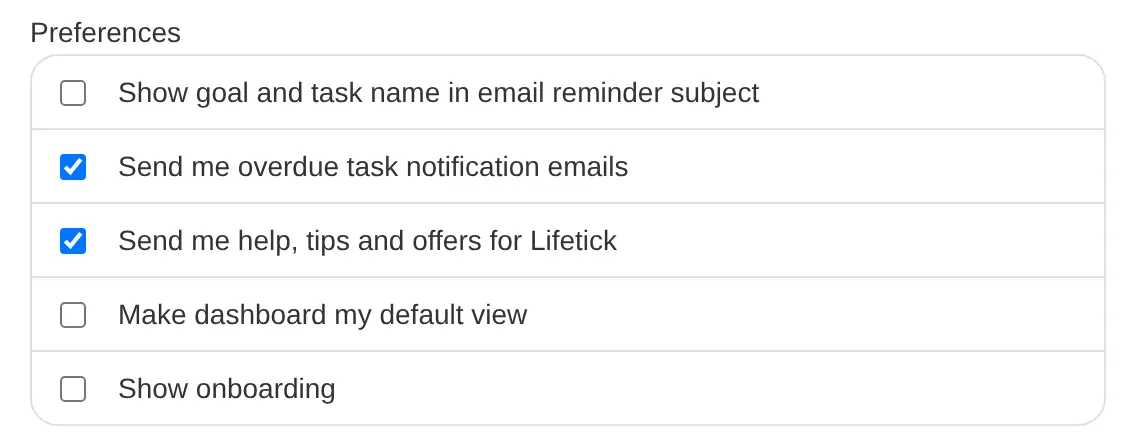
Choose Update after changing them. On iPhone, the same switches are under Emails in My account.
Particular emails
- Password reset: it only goes to an email that has a Lifetick account. Accounts that sign in with Google, Microsoft or Apple don't get one, because they have no Lifetick password.
- Check-ins: the email goes out when the check-in opens, and, except for daily check-ins, a reminder a day later if you haven't answered. You can always answer from your dashboard, email or not.
- Task reminders: only tasks with an Email reminder set get one. Reminders aren't arriving has more checks.
