Different check-ins for groups
Managers can send a check-in to some of their groups instead of everyone. Owners can send one to only some managers' teams.
Not every check-in suits everyone. Your workshop might answer a safety check while your sales team answers a pipeline one. You choose who gets each check-in in its window.
As a manager: send one to some groups
Groups belong to each manager, and each team member is in one of your groups or none. Set them up on the Team Members page first.
- Open the window. On Today, find the Scheduled check-ins card. Choose New for a new one, or Edit on one you have.
- Untick All my team members. Under Sent to, All my team members goes to everyone who reports to you, including people who join later.
- Tick the groups. Tick one or more of your groups. It goes to the people in those groups.
- Set the rest and save. Choose the questions and schedule, then Save.
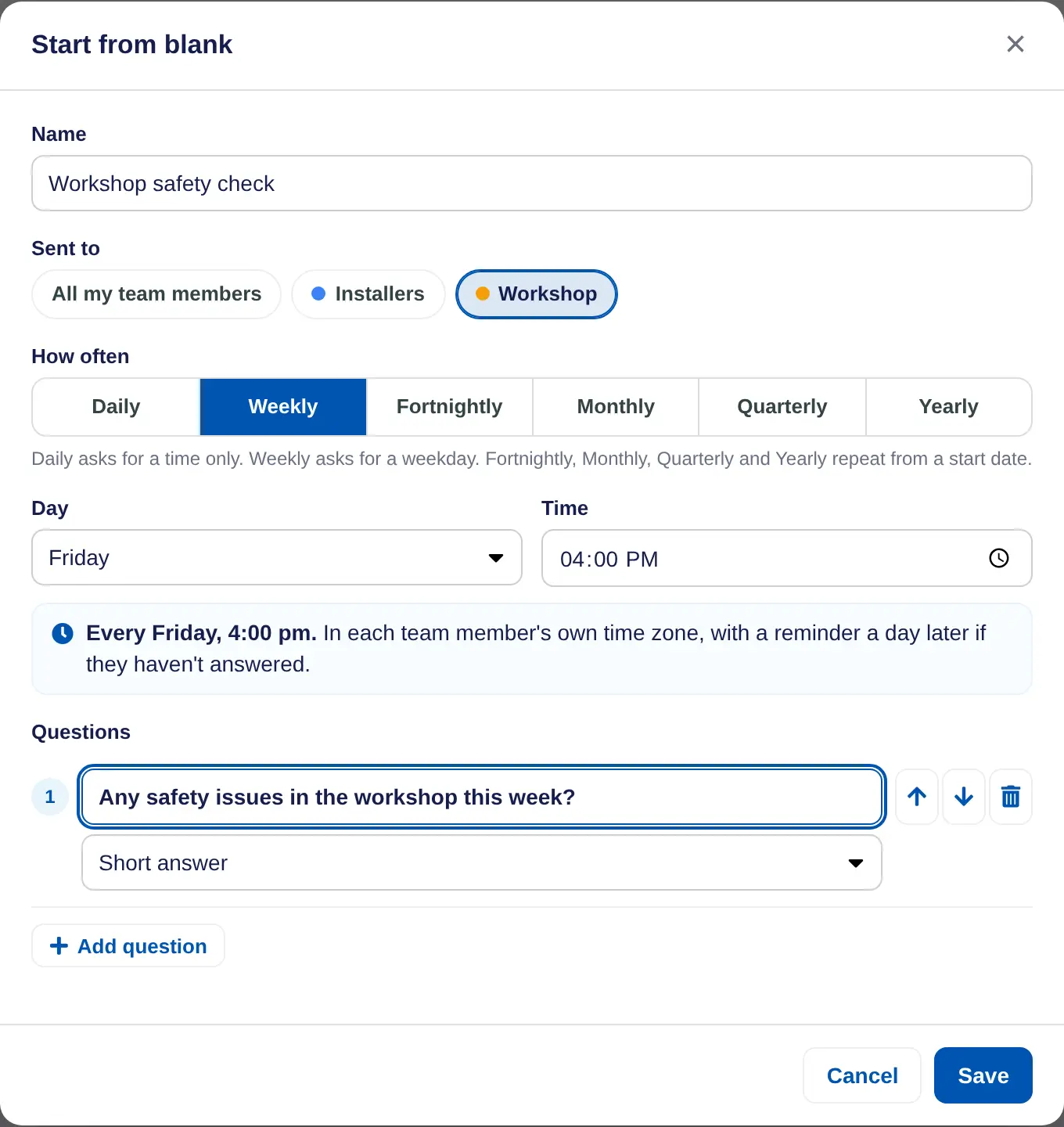
If you have no groups yet, the window says so and the check-in goes to all your team members.
As an owner: send one to some teams
- Open it. Choose Check-ins in the menu under your organisation's name, then Edit on a check-in, or New.
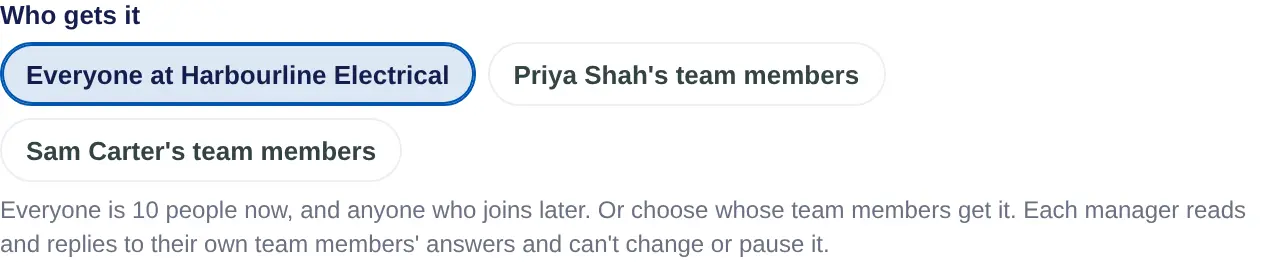
- Choose who gets it. Under Who gets it, untick Everyone at your organisation and tick one or more managers' team members instead.
- Save. Each manager reads and replies to their own team members' answers. They can't change or pause it.
Good to know
- Someone can get more than one check-in, for example an owner's weekly one and their group's monthly one. Each comes with its own email.
- When someone moves to another group, they get that group's check-ins from the next time each one goes out.
- Managers only get to add their own when the owner has left Managers can add their own turned on, on the Check-ins page. Turning it off pauses every manager's own check-ins until it's turned back on.
- Each check-in has its own colour on the Check-ins page and on Today, so you can tell the answers apart.
In a school account these are reflections for your students. In a coaching account they go to clients.
