Remind people who haven't answered
Lifetick sends one reminder a day after a check-in opens. You can also remind everyone who hasn't answered, or one person, at any time while it's open.
A check-in stays open until the next one goes out. Lifetick nudges people once on its own, and you can nudge them again yourself.
The automatic reminder
If someone hasn't answered a day after a check-in opens, Lifetick emails them one reminder. Its subject starts with Reminder:, then the check-in's name. Daily check-ins don't get a reminder, because the next one is only a day away.
Remind everyone who hasn't answered
- Open Today. Find the Scheduled check-ins card.
- Check the count. Under a check-in that is open, the bar shows how many have answered, such as 1 of 7 answered.
- Choose Remind. Remind 6 emails a reminder to each of the 6 people who haven't answered. The button then shows how many were reminded.
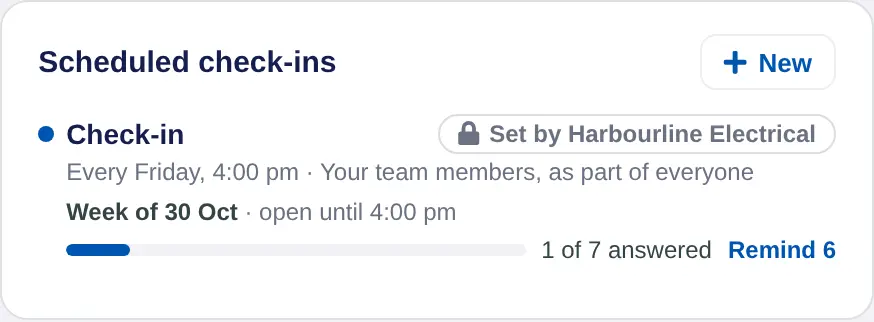
A check-in your owner set for everyone shows Set by your organisation. You can't change it, but you can still remind your own team members: choose it, then Remind in the window.
Remind one person
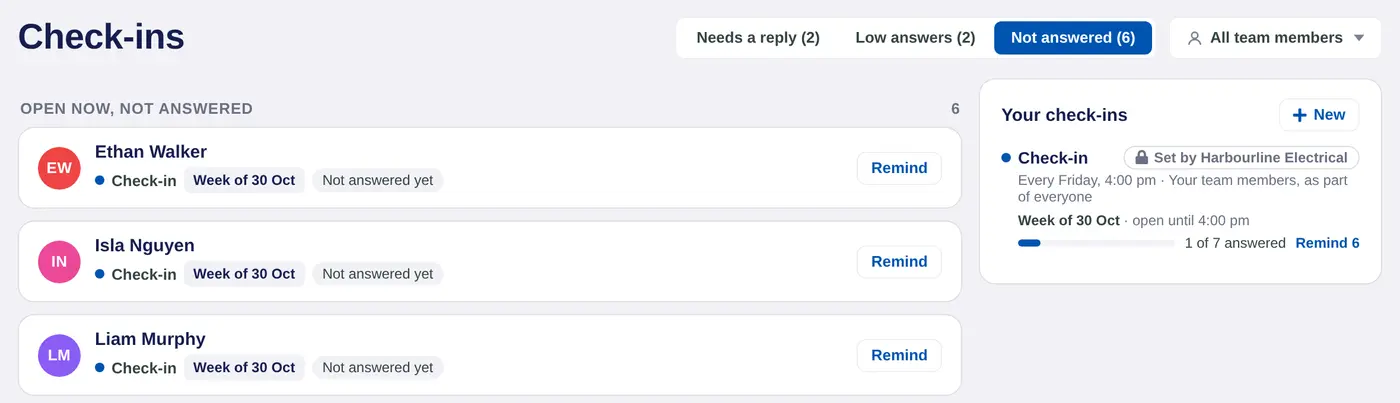
- Open the Check-ins page. Once you've replied to or cleared an answer, choose the check-ins done today link at the foot of Waiting on you on Today.
- Choose Not answered. It lists who still owes what is open now. Each shows Not answered yet, or Started, not sent if they saved answers without sending.
- Choose Remind. They get an email straight away, and the button changes to Reminded.
Good to know
- A reminder links straight to the check-in. People can also answer from their dashboard or the iPhone app, email or not.
- You can't remind people about a paused check-in. Turn it on first.
- Owners see how many people answered on the Check-ins page under their organisation's name, by manager. Each manager reminds their own team members.
- If someone says the emails never arrive, see Not getting Lifetick emails.
In a school account, these are reflections and students. In a coaching account, clients.
