Read and reply to answers
New answers wait for you on Today under Waiting on you. Reply in a sentence or mark them Done, and spot low weeks as they come in.
When one of your team members sends a check-in, it comes to you, their manager. You read it and reply on the web.
Read and reply on Today
- Open Today. The number beside Today in the menu is how many things are waiting.
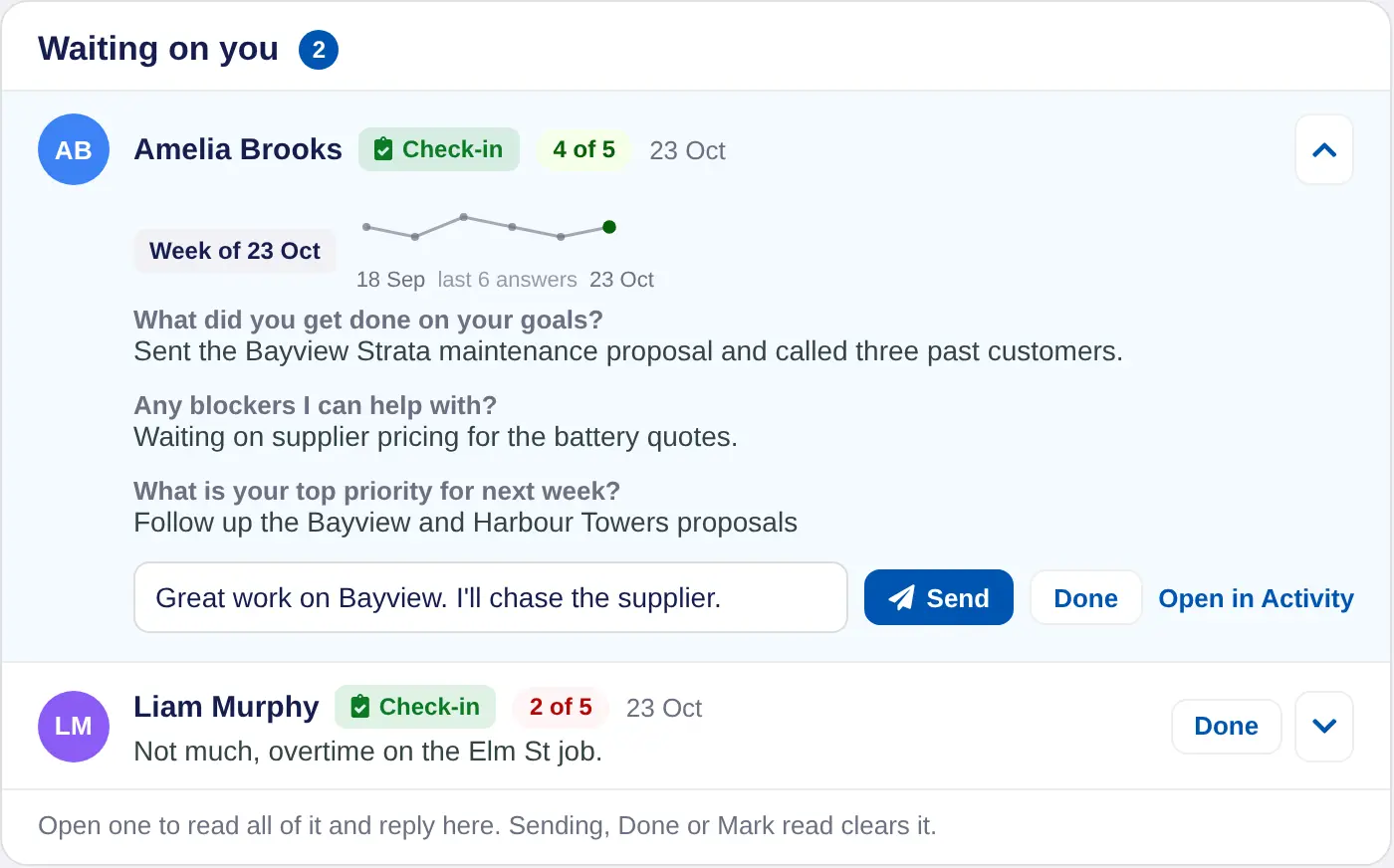
- Find Waiting on you. Each answer shows the person, the check-in's name, their 1 to 5 answer, such as 4 of 5, and when they sent it. Messages wait here too.
- Open an answer. Choose the row to see every answer and a line of their last few 1 to 5 answers. A Second low week in a row tag shows when this answer and the one before were both 1 or 2.
- Reply or mark it done. Type in the reply box and choose Send, or choose Done if it needs no reply. Either way it leaves Waiting on you.
What your reply does
Your reply goes to the person as a message from you, with a link to the answer it's about. They see it in Messages, beside that answer on their My Manager page, and in their journal on iPhone. When you choose Done without replying, the iPhone app tells them you've read it.
See all answers in one place
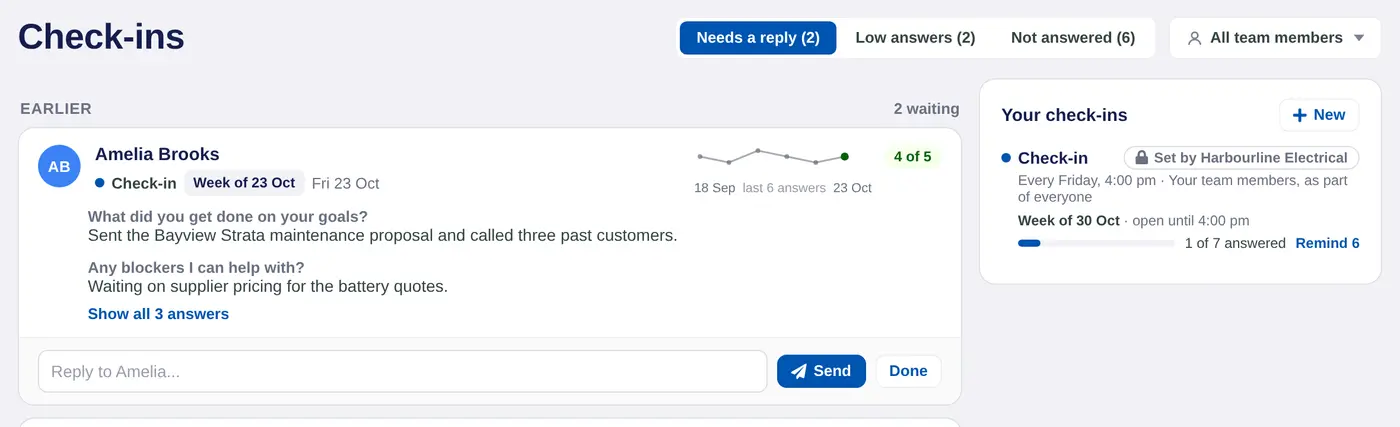
Once you've replied to or cleared an answer, a check-ins done today link shows at the foot of Waiting on you. It opens the Check-ins page:
- Needs a reply lists answers you haven't replied to or marked done.
- Low answers lists answers of 1 or 2 out of 5 from the check-in's last two periods, such as the last two weeks for a weekly one, replied to or not.
- Not answered lists who still owes what is open now, with Remind.
- All team members picks one person. Mark as unread puts an answer back in the list.
Answers with no reply drop out of the list after two of its periods, such as two weeks for a weekly one. They're never lost. Every answer stays on the person's Activity tab: choose Team Members, then the person.
Low answers also put the person under Needs attention on Today, and a recent answer is suggested for the agenda of your next one-on-one.
In a coaching account, answers come from clients. In a school account they're reflections from students.
