Invoices and receipts
Every web payment has a tax invoice in your transaction history, and Premium receipts are also emailed. App Store purchases are receipted by Apple.
Lifetick keeps a tax invoice for every payment you make on the web. You can open any of them from your transaction history.
Find an invoice
- Open your billing page. For Premium, choose the account menu at the top right, then Subscription. For a team, owners choose Billing in the menu under the organisation's name.
- Find the payment. Under Transaction history, each payment shows its date, a Paid tag and the amount.
- Open it. Choose the payment to see its Tax Invoice.
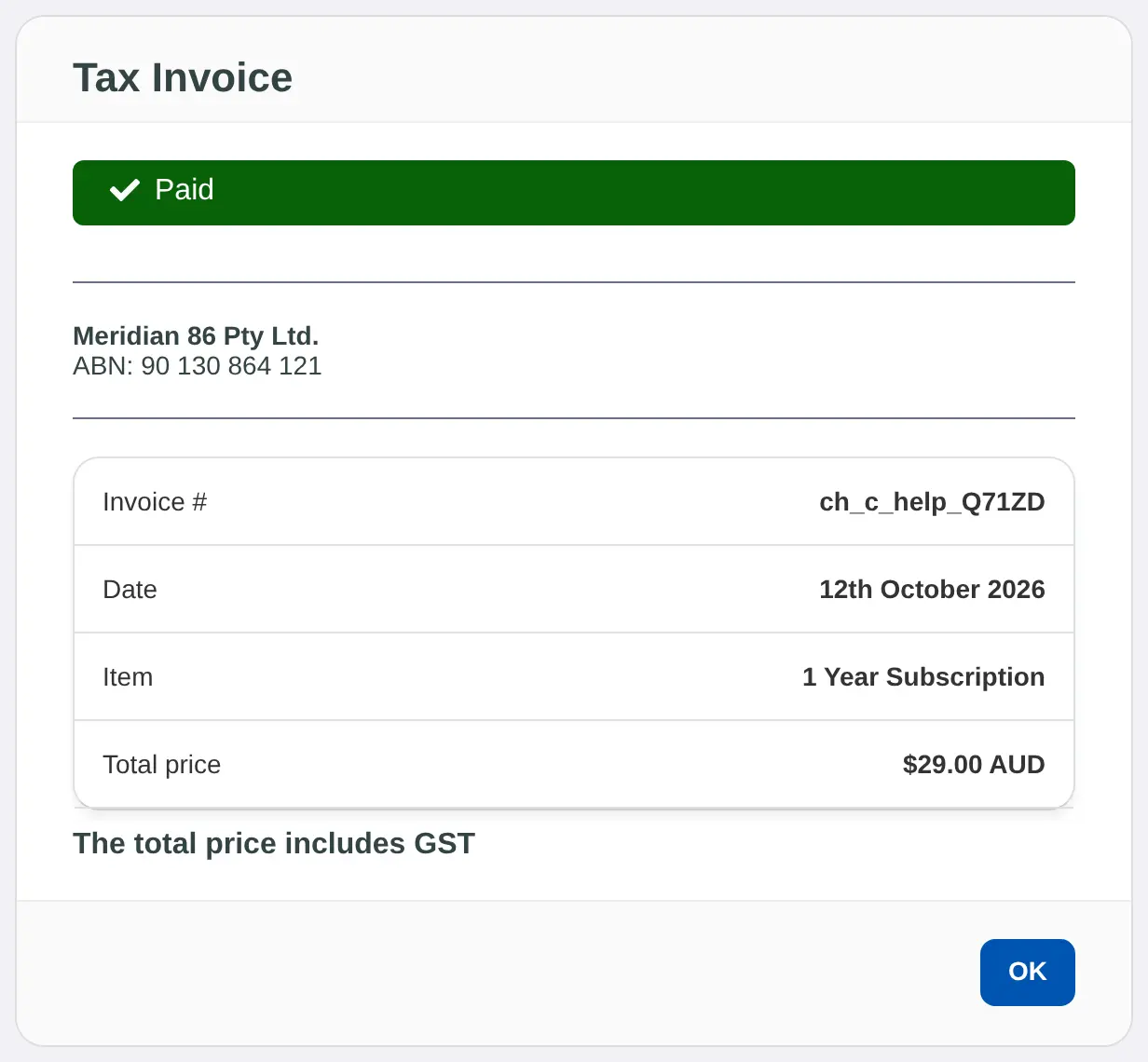
The tax invoice shows the Invoice #, Date, Item and Total price, with Meridian 86 Pty Ltd's ABN. Prices in Australian dollars include GST, and the invoice says so.
For a Premium subscription, a payment that didn't go through also appears in the list, with the reason. Choosing it shows NOT PAID and the reason.
Emailed receipts
- Premium: after each payment you get an email called "Lifetick subscription receipt". It includes the tax invoice details: invoice number, amount and date.
- Teams: each owner gets an email called "Lifetick payment received". The tax invoice is on the Billing page.
Bought in the iPhone app
App Store purchases are billed and receipted by Apple. They don't appear in Lifetick's transaction history. Look for them in your App Store purchase history or the receipt email from Apple.
