Update payment details
Replace the card your Premium or team subscription is charged to. The new card is used from your next payment.
If your card has expired, been replaced or a payment didn't go through, put a new card on your subscription. Payments are processed by Pin Payments.
Premium on the web
- Open Subscription. Choose the account menu at the top right, such as Alex's account, then Subscription.
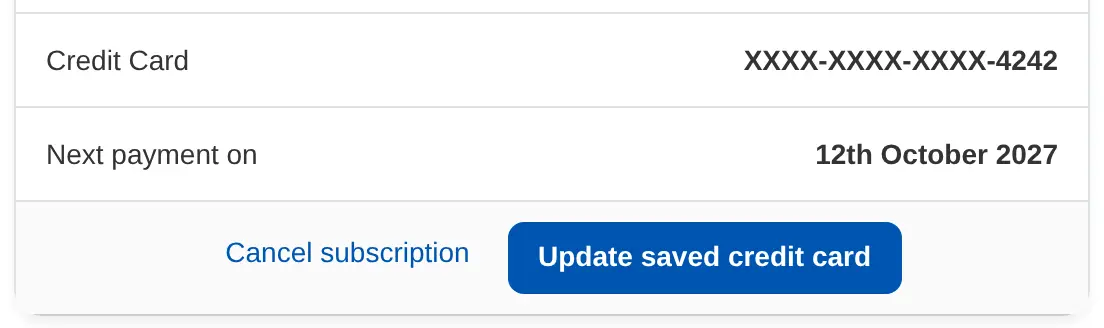
- Choose Update saved credit card. It's under the card and Next payment on date.
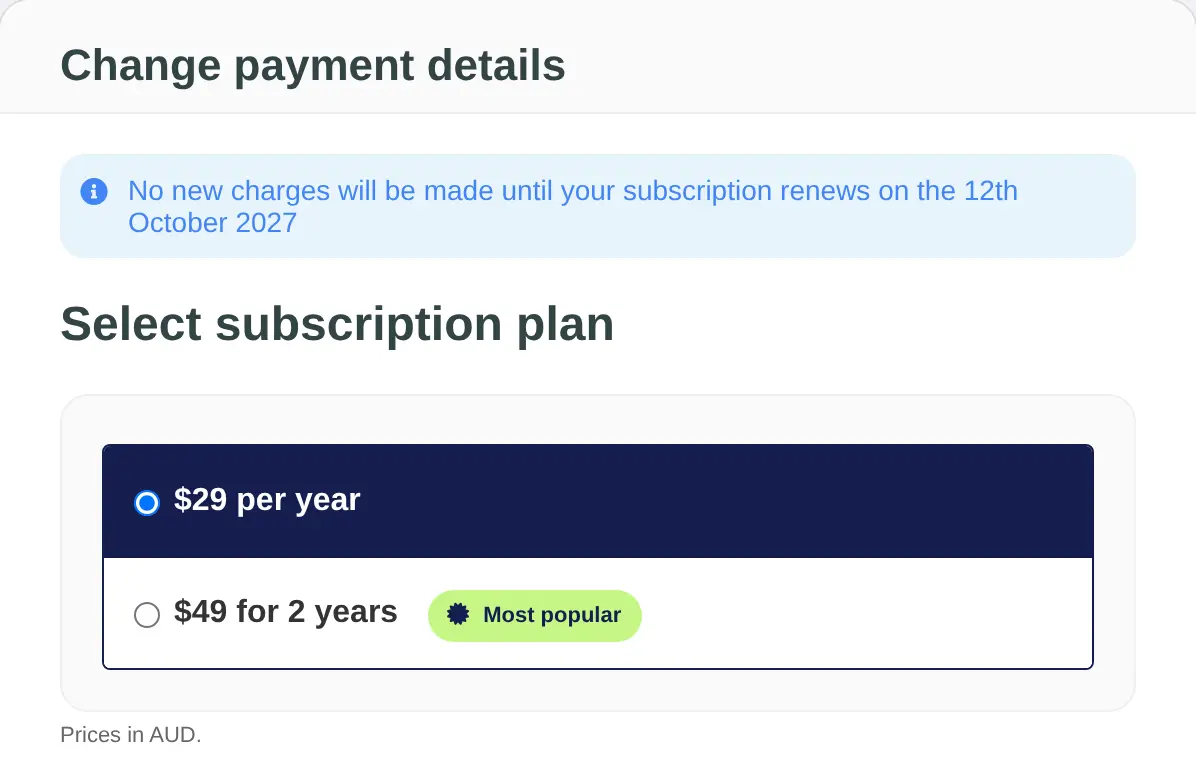
- Check the plan. The Change payment details page says when your next payment is due. Your current plan is already chosen under Select subscription plan. Pick another one if you want to change it from your next payment.
- Enter the new card. Fill in Name on card, Credit card number, Expiry month, Expiry year and Security Code (CVC), then your Billing address.
- Choose Update. Your bank may ask you to confirm. The new card replaces the old one.
A team subscription
Owners go to Billing in the menu under the organisation's name and choose Update credit card details, or Add Credit Card if none is saved yet. Enter the card and billing address, then choose Update.
When a payment fails
You'll get an email with the reason, and Lifetick tries the card again. After three failed tries the Subscription or Billing page shows There was a problem processing your credit card. Update the card as above to carry on.
Bought in the iPhone app
An App Store subscription is billed by Apple, so Lifetick never sees your card. Change the payment method in your Apple Account settings on your iPhone.
