Sign in and reset your password
Sign in with your email and password, or with Google, Microsoft or Apple. Forgot your password? A reset link is emailed to you.
You can sign in with your email address and a Lifetick password, or with a Google, Microsoft or Apple account. The web and the iPhone app use the same account, so sign in the same way on both.
Sign in on the web
- Open the sign in page. Choose Sign in at the top of lifetick.com.
- Enter your email. Type it under Email and choose Continue.
- Enter your password. Type it under Password and choose Log in.
To use Google, Microsoft or Apple instead, choose the matching Continue with button. The first time you do this with an email Lifetick doesn't know yet, a new account is made for it.
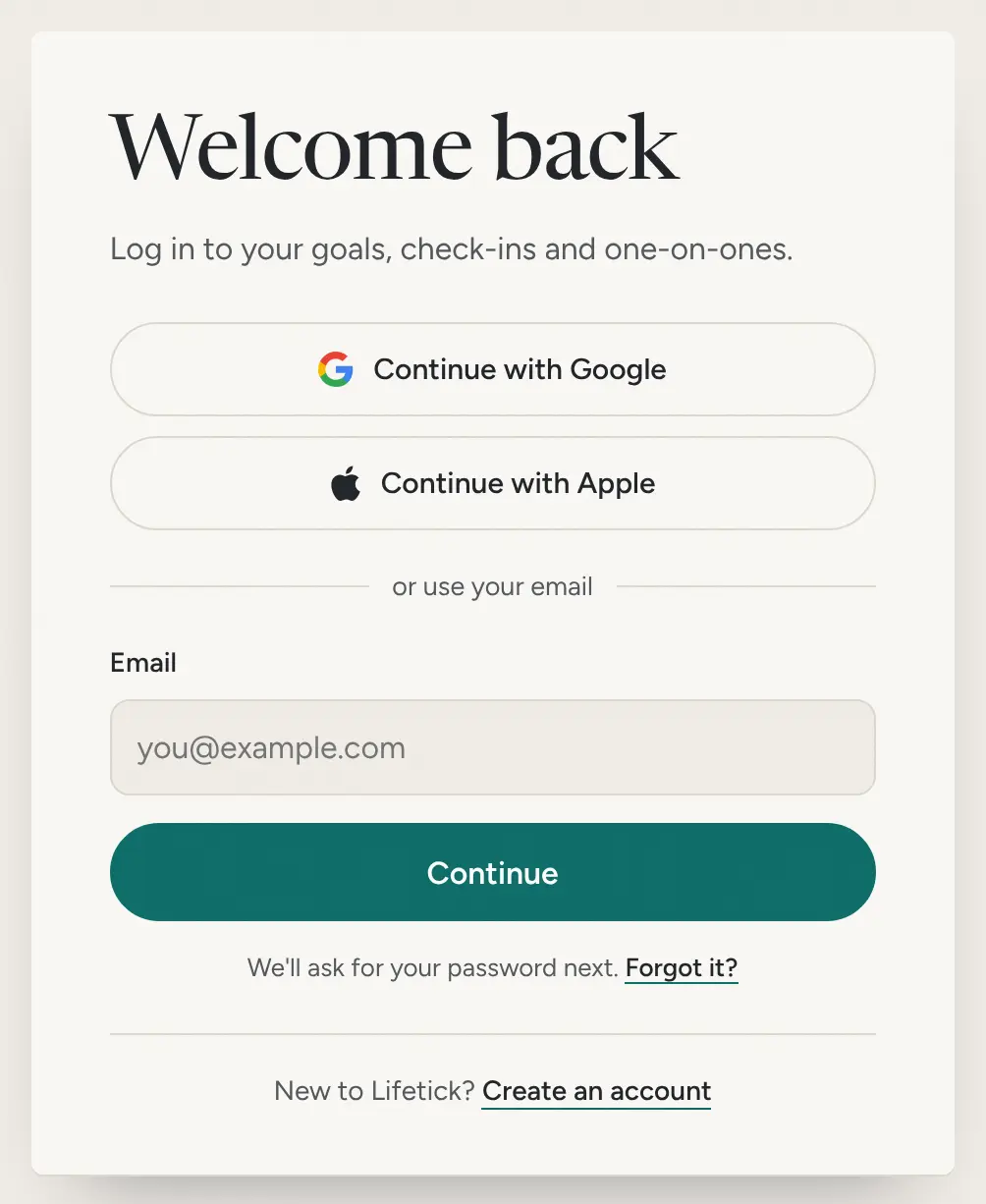
If your organisation uses its own single sign on, enter your work email and choose Continue. Lifetick sends you to your organisation's sign in page.
Sign in on iPhone
Tap I already have an account, then Continue with Google, Continue with Microsoft, Continue with Apple or Continue with email.
Reset your password
- Choose Forgot it? It's under the Email field on the sign in page. On the password step it's Forgot your password?
- Send the link. Enter your email and choose Send reset link.
- Open the email. It's called "Reset your Lifetick password". Choose Reset my password. The link works for one hour.
- Set a new password. Type it under New password and Confirm password, then choose Save. It needs 6 to 60 characters.
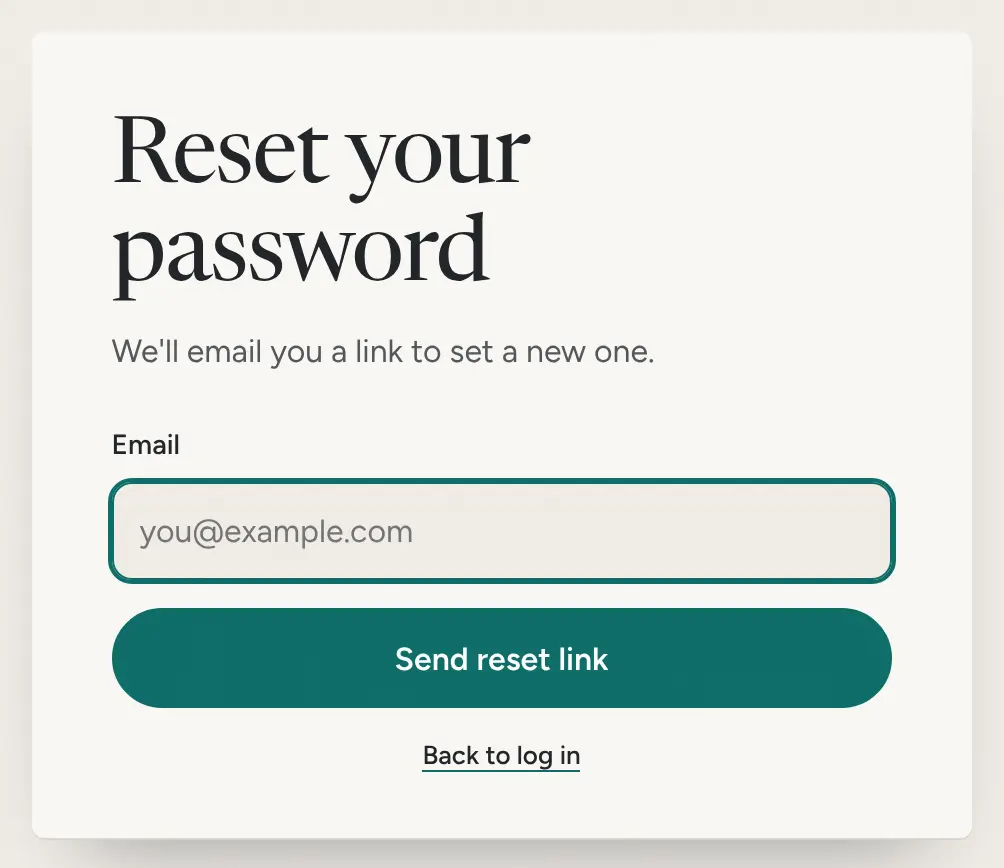
When you see Your password has been changed, sign in with the new one.
Accounts that use Google, Microsoft or Apple
These accounts don't have a Lifetick password, so there's nothing to reset. Sign in with the same button you used before. If you've lost access to that account, get it back with Google, Microsoft or Apple first.
Change your password while signed in
On the web, open the account menu at the top right, choose Settings, then Change password. Enter your Current password, then the New password and Confirm new password, and choose Change.
In the iPhone app, go to Home, tap Settings, then My account and Change password. Enter your Current password, then the New password twice.
