Quick start: your first SMART goal
Create a free personal account, set your first goal and add the first task towards it. It takes about five minutes.
This gets you from no account to one goal with a first step to tick off. A personal account is free, and you can start on the web or on iPhone.
Create your account
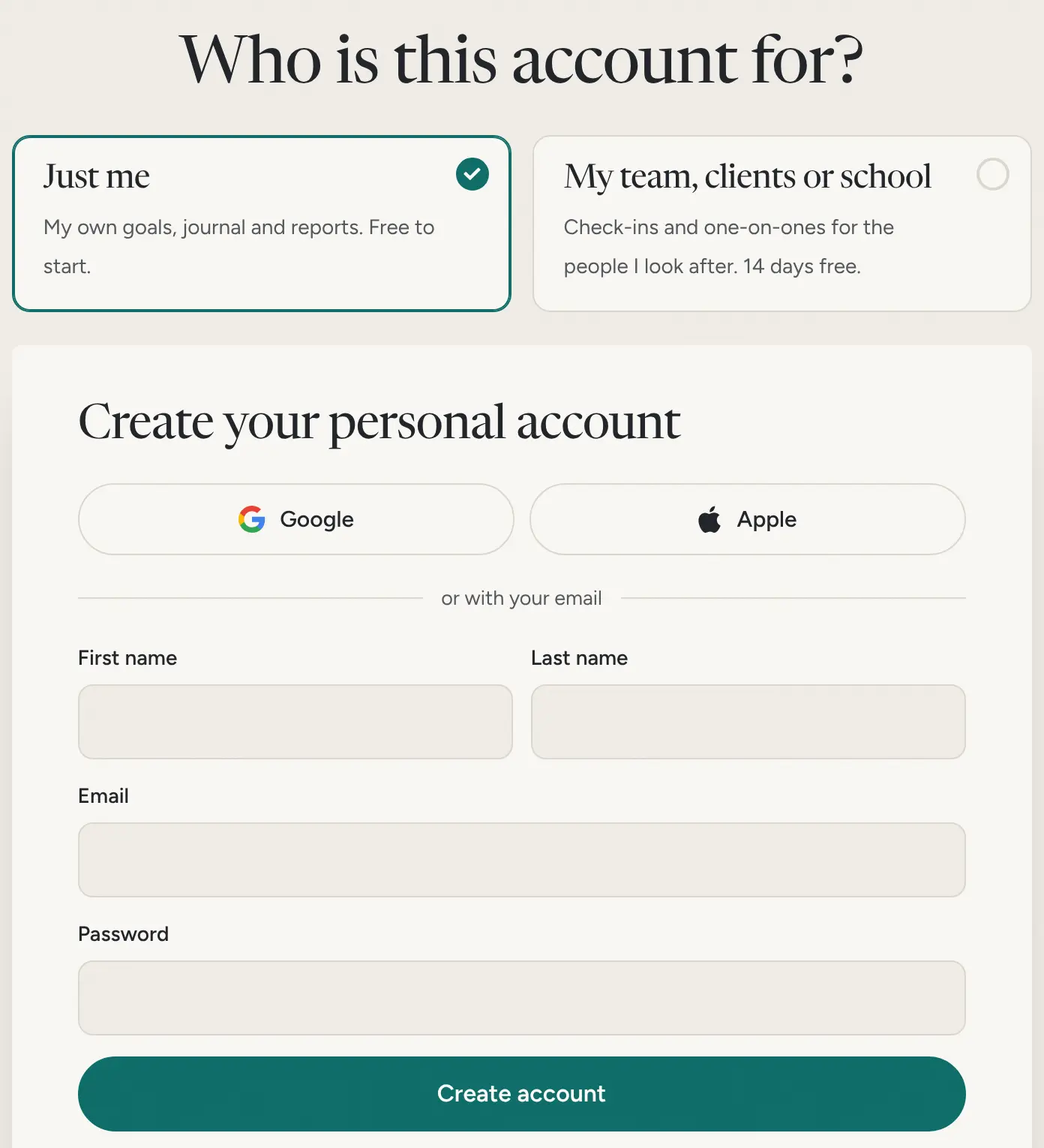
- Open the sign up page. On lifetick.com, choose Start free, then For me.
- Check Just me is chosen. Under Who is this account for?, Just me is ticked. That's a personal account for your own goals, journal and reports.
- Sign up. Choose Google, Microsoft or Apple, or fill in First name, Last name, Email and Password and choose Create account. The password needs at least 6 characters.
- Choose Start now. You land on Goals, ready for your first one.
On iPhone, open the Lifetick app and tap Get started. It walks you through your core values, one goal and its first steps. You can save the account with an email address later.
Set your first goal
- Choose Add goal. It's in the middle of the empty Goals page, and at the top.
- Answer the questions. Say what you want, how you'll measure it, how achievable it is, which core value it serves and when you want it done. Only the goal and the time frame are needed. Write a SMART goal goes through each question.
- Choose Create goal. The goal opens straight away.
Add the first task
A goal moves when its small steps get done. Each task you tick off moves the goal's progress bar.
- Name the task. In the goal, type a small next step in Task name, such as "Book four swimming lessons".
- Pick a date. Choose Choose a date and pick when you'll do it.
- Add it. Choose Quick add task. Add two or three more the same way.

What next
- Tick tasks off as you do them, on the web or in the iPhone app. Both use the same account.
- To add a reminder, sub-tasks or a repeat to a task, see Add tasks, dates and reminders.
- The Free plan keeps two goals going at a time. Upgrade to Premium for more.
