Add tasks, dates and reminders
Break a goal into small tasks with due dates, make a task repeat, and get an email reminder before it's due.
A goal moves when you tick off small tasks. Give each task a due date and Lifetick can email you before it's due.
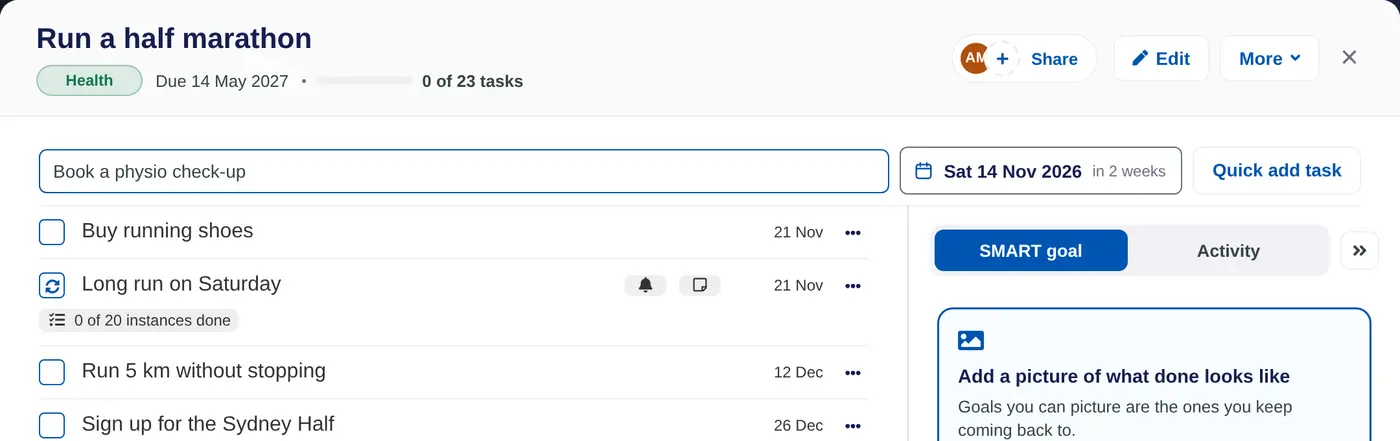
Quick add a task
- Open the goal. Go to Goals and choose the goal.
- Name the task. Type it in Task name at the top of the goal.
- Pick a date. Choose Choose a date and pick the due date.
- Add it. Choose Quick add task. Add the next one straight away if you like.
Add a task with more detail
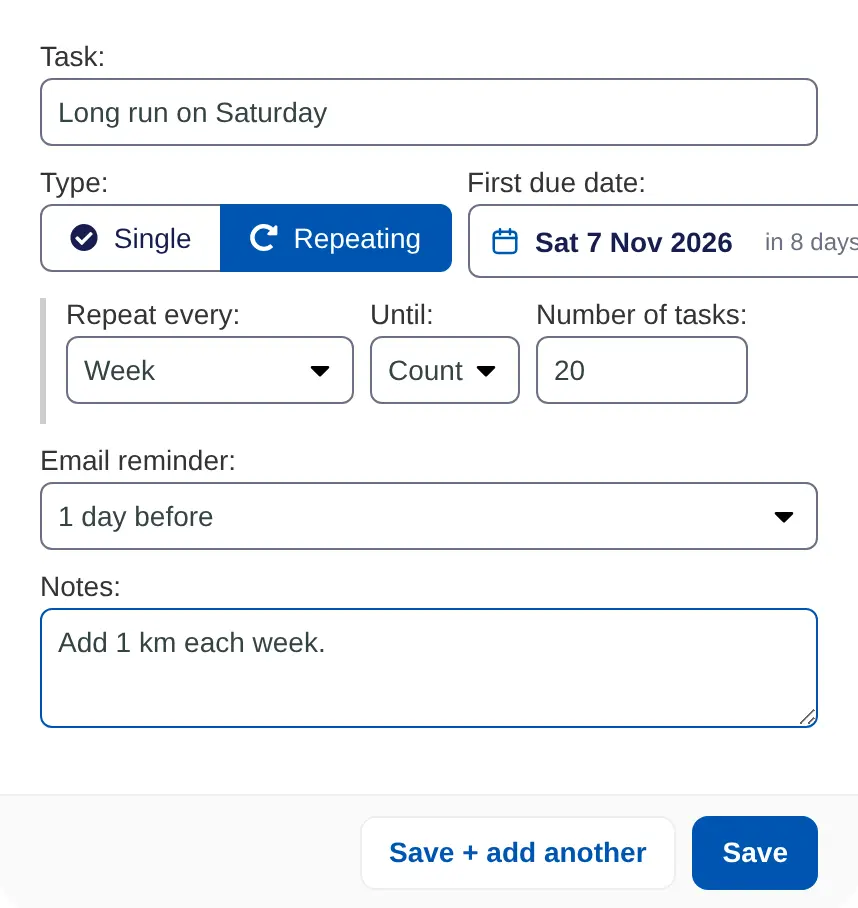
- Open the task form. In the goal, choose More, then Add a task with details.
- Name it. Fill in Task:.
- Choose single or repeating. Under Type:, choose Single for a one-off task or Repeating for something you do regularly.
- Set the dates. For a single task, set Due date:. For a repeating task, set First due date: and Repeat every:, such as Week, Fortnight, Weekday or Month. Then under Until: choose Count and enter the Number of tasks:, or choose Date and set an End date:.
- Add a reminder. Under Email reminder:, choose when to hear from us, such as On the day or 1 day before. Only the options that fit before the due date are offered.
- Save. Choose Save, or Save + add another to keep going.
If a task is due after the goal's date, Lifetick asks whether to move the goal's date out to match.
Change or tick off a task
- Choose ••• next to a task to change its name, date, reminder or notes, or to Delete it.
- Tick the box to complete a task. For a repeating task, choose Complete or Skip and how many instances, then Done. The row shows how many instances are done.
- Add Sub-tasks gives a task its own checklist. Sub-tasks need Premium.
On a shared goal, Assign to: lets you pick who does the task.
On iPhone, open the goal and tap + Task. Turn on Task repeats for a repeating task, and choose an Email reminder.
