Quick start: set up your team
Sign up your organisation, answer four short set up steps, then work through the Set up page to brand it, invite people and send your first check-in.
Setting up Lifetick for a team happens on the web. It's free for 14 days and you don't need a card to start. Nobody gets an email until you send invites.
Create the team account
- Open the sign up page. On lifetick.com, choose Start free, then For my team.
- Pick the kind of organisation. Under What kind of organisation?, choose Business, Coaching or School.
- Sign up. Choose Google or Microsoft, or fill in your name, Work email and Password and choose Create account.
Answer the four set up steps
- See how it works. Step 1 shows the three parts: My Lifetick for everyone, Leading your team for managers, and the admin part only you see. Choose Continue.
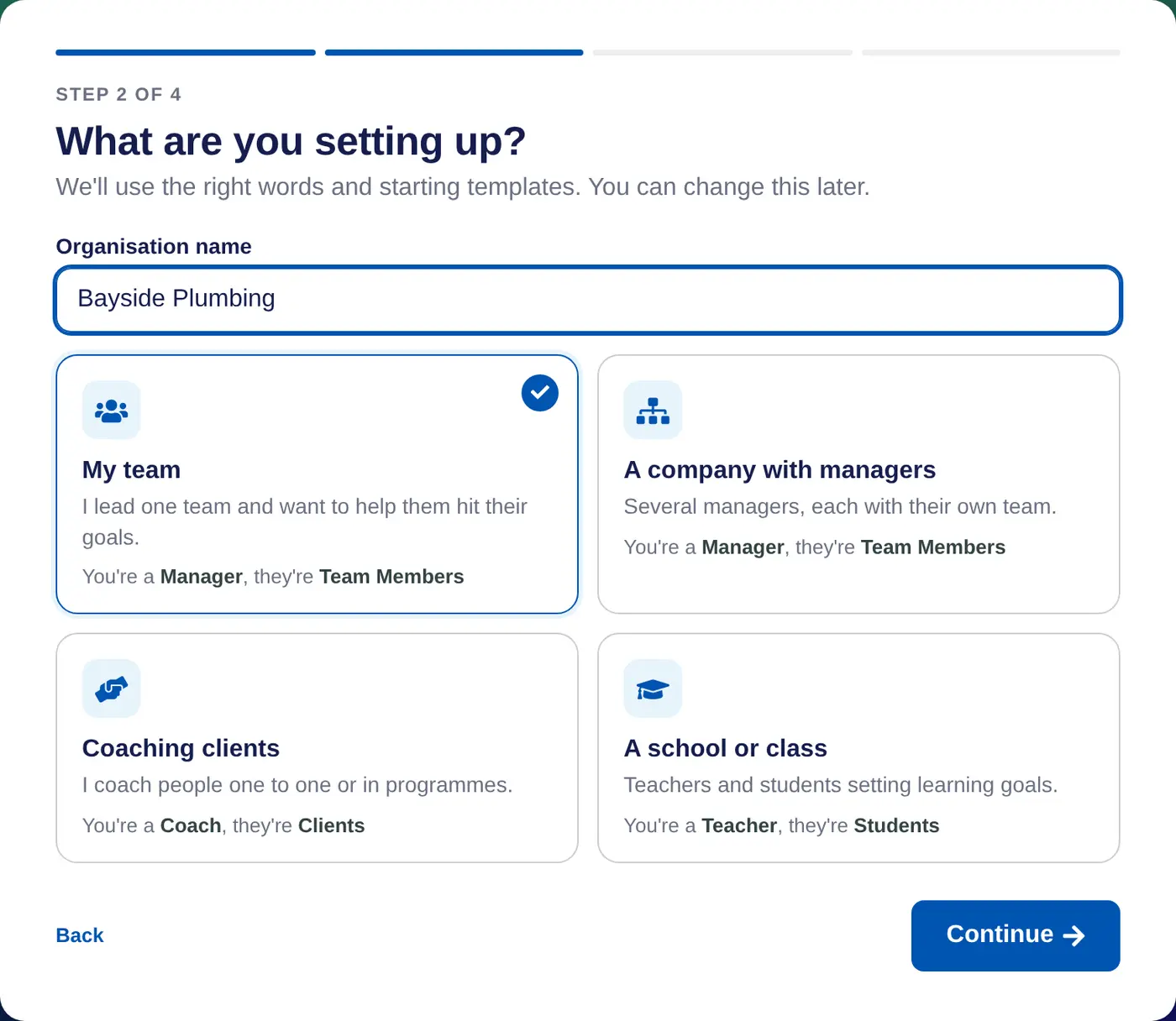
- Name it and say what it is. Enter the Organisation name, then choose My team, A company with managers, Coaching clients or A school or class. This picks the words Lifetick uses, such as Manager and Team Members.
- Say how it's set up. Choose how many people will use it, and who reports to whom: One team, managers and their teams, or More levels.
- Choose how to start. Try it myself first lets you set a goal and answer a check-in as yourself before inviting anyone. Set up my team now goes straight to invites. Then choose Go to your organisation.
Work through the Set up page
You land on Set up, a page of cards that tick themselves off as you go. Change your answers takes you back through the steps.
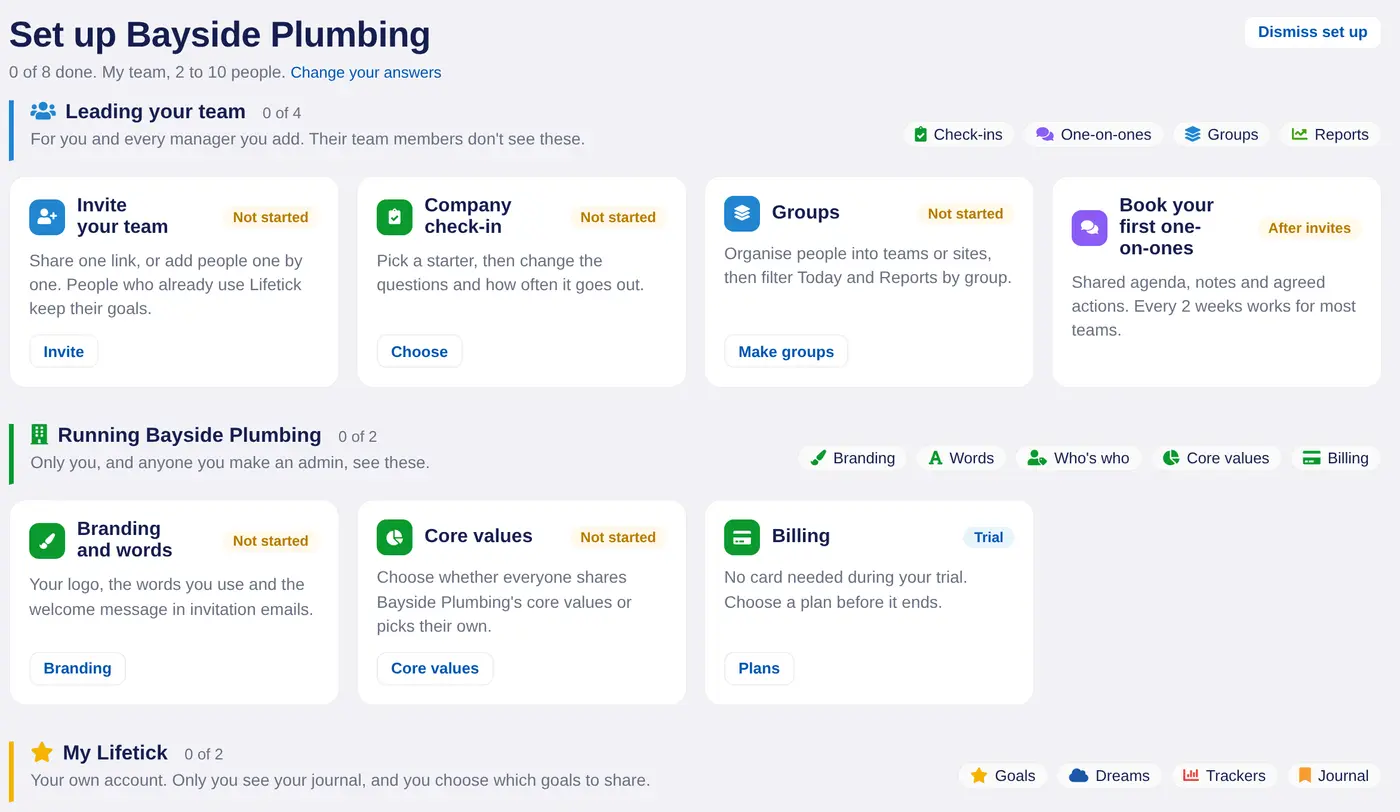
- Brand it. On Branding and words, choose Branding to add your logo, change the words your team sees and write the welcome message for invitation emails.
- Set your core values. On Core values, choose whether everyone shares your organisation's values or picks their own.
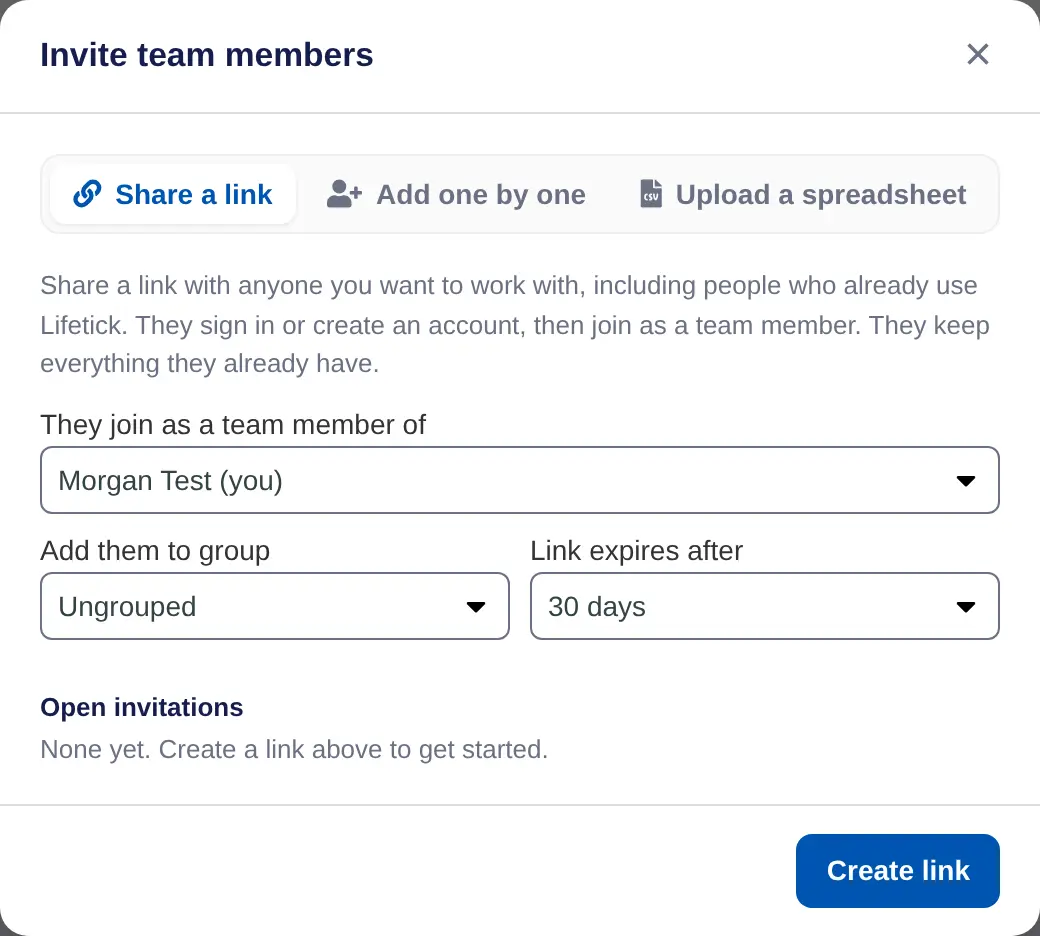
- Invite your team. Choose Invite. On Share a link, choose who they join under and how long the link lasts, then Create link and send it however you like. Add one by one and Upload a spreadsheet are there too.
- Send your first check-in. On Company check-in, choose Choose, pick a starter and save it. See Send your first check-in for each setting.
What happens next
- People who join with the link keep any goals they already have in Lifetick.
- Answers to check-ins arrive on your Today page.
- The Billing card shows your plan. Choose one before the 14 days are up.
- Your own goals are under My Lifetick in the menu.
