Add your logo and brand
Put your organisation's name and logo in Lifetick and its emails, add a welcome message to invitations and share your own branded sign in page.
You can make Lifetick look like your organisation's own. Your logo shows at the top of every page for everyone in your organisation, and in the emails Lifetick sends them. Only admins can change it.
Add your name and logo
- Open Branding and words. In the menu under your organisation's name, choose Branding and words.
- Check the name. Name in the app is what your people see, in the header and in invitation emails.
- Upload your logo. Under Logo, choose Upload a logo and pick a PNG or JPG under 5MB. A wide logo about 370 by 100 pixels fits best. To swap it later, choose Change.
- Choose where it shows. Use it in emails too is ticked to start with, so the same logo goes on Lifetick's emails to your people.
- Save. Choose Save at the bottom of the page. The Preview beside the form shows how it will look.
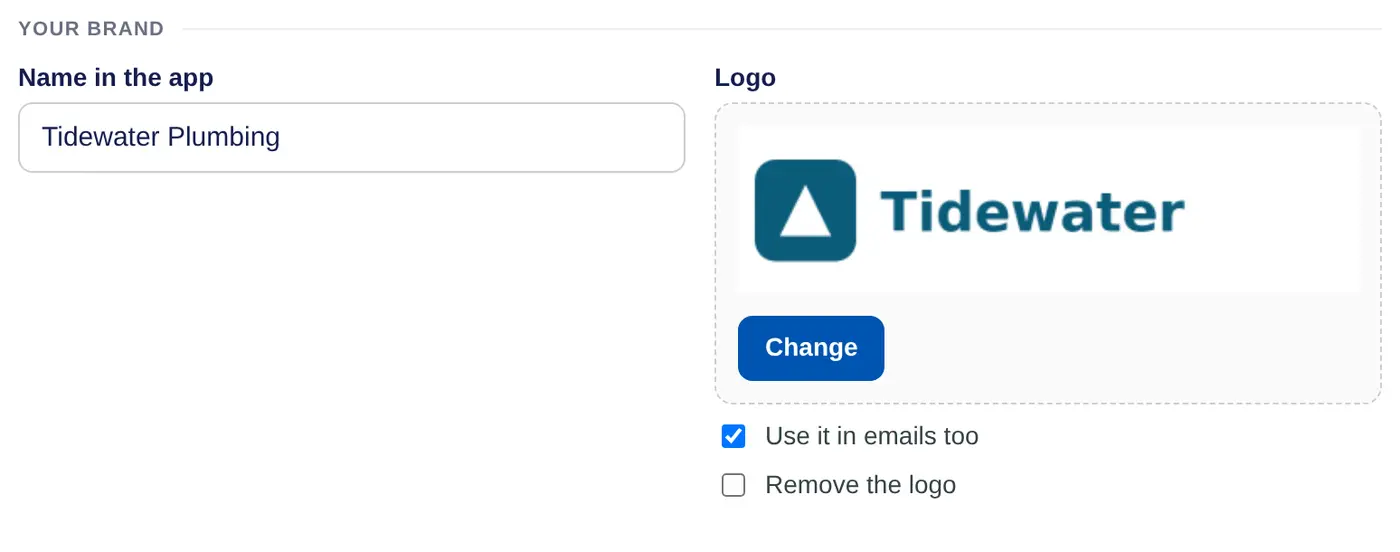
To go back to the Lifetick logo, tick Remove the logo and choose Save.
Welcome people in the invitation email
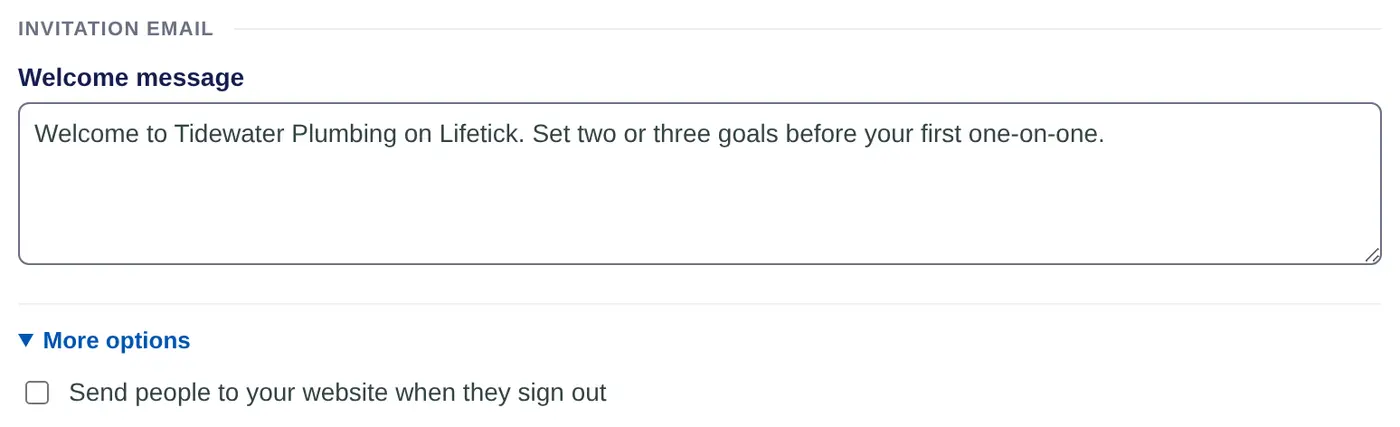
Under Invitation email, write a short Welcome message. It goes into the email people get when you add them, such as "Set two or three goals before your first one-on-one." Leave it empty for Lifetick's standard email.
More options
Choose More options for three extras:
- A different logo in emails. Untick Use it in emails too first, then choose Upload an email logo.
- Send people to your website when they sign out. Tick it and enter a web address starting with https://, such as your intranet.
- Your own sign in page. This link opens the Lifetick sign in page with your logo on it. Share it with your team members or put it on your intranet.
Save again after changing any of these.
The same page also sets the words Lifetick uses for your people. See Change the words your team uses.
