Invite people with one link
Create a link, send it however you like, and anyone who opens it joins your team. It works for people new to Lifetick and people who already use it.
The quickest way to bring people in is one link. Send it by email, chat or text. Each person who opens it signs in or creates an account, then joins as a team member. People who already use Lifetick keep their goals and journal.
Create the link
- Open Invite. Admins choose People and invites in the menu, then Invite. Managers choose Team Members, then Invite.
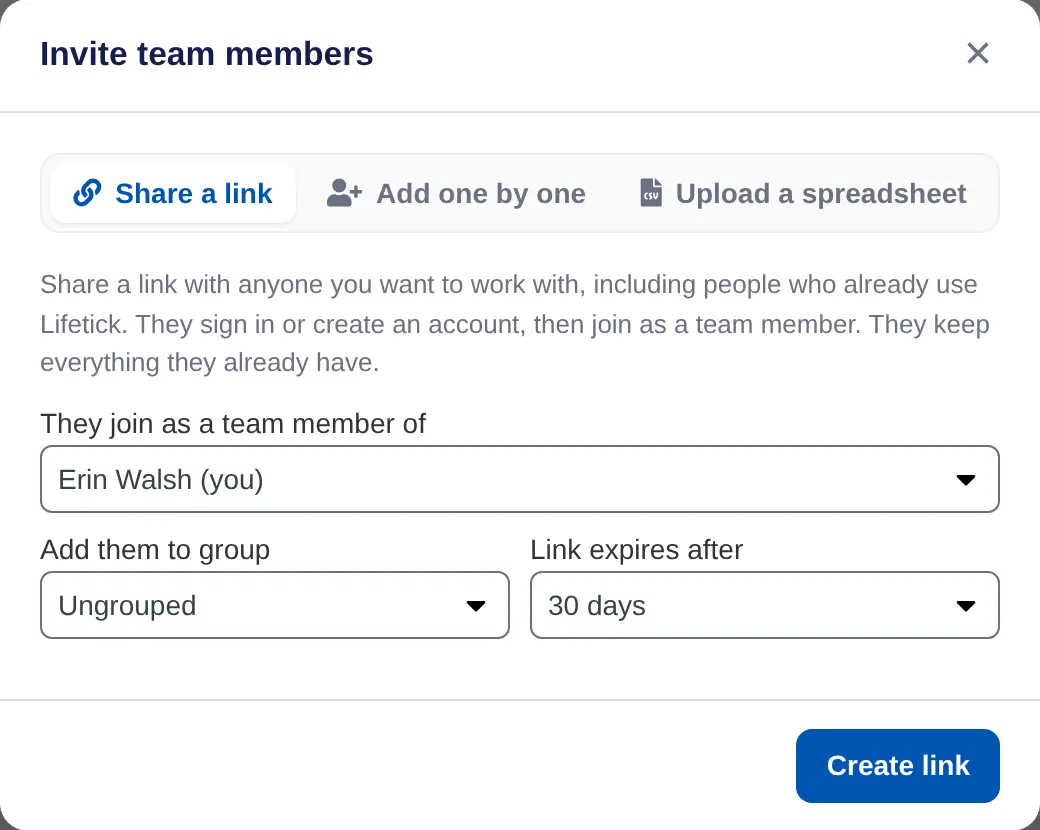
- Stay on Share a link. It's the first tab. Add one by one emails people instead, and admins and super managers also have Upload a spreadsheet.
- Choose who they join. Admins and super managers choose a manager under They join as a team member of. Managers' links always join them to their own team.
- Pick a group. Optional. Under Add them to group, choose one of that manager's groups, or leave it Ungrouped.
- Choose how long it lasts. Under Link expires after, choose 7 days, 14 days, 30 days or 90 days.
- Create it. Choose Create link. It appears under Open invitations. Choose Copy and send it.
One link works for as many people as you send it to, until it expires. Open invitations shows each link's group, manager, expiry date and how many people have joined. To stop a link working, choose Revoke.
What people see
The link opens a page headed Join and your organisation's name, which says who their manager will be. They choose I already have a Lifetick account to sign in, or fill in their name, email and a password and choose Create account and join.
Once they join, their manager can see their goals and journal, except anything they mark Private. If they paid for Premium on the web, it's paused while they're in your organisation.
Good to know
- Everyone who joins with a link is a team member. To make someone a manager, change their role afterwards. See Roles: owner, manager, member.
- Someone already in another organisation on Lifetick can't join with the link.
- Before you can invite anyone, confirm your organisation's email address from the email Lifetick sent when you signed up.
- If a link has expired, create a new one. See Re-send an invite.
