Change the words your team uses
Pick the words Lifetick uses for your organisation, its managers, team members, check-ins, one-on-ones, reports and core values.
Lifetick can use the words your organisation already uses. A business might say manager and team member, a coach says coach and client, and a school says teacher and student. The words change in the menus, on the pages and in the emails Lifetick sends. Only admins can change them.
Change the words
- Open Branding and words. In the menu under your organisation's name, choose Branding and words.
- Pick your kind of organisation. Under Words, choose Business, Coaching or School. Each one fills in its usual words and offers the choices that fit it.
- Pick each word. Choose a word from each list. For example, in a business, People who lead can be Manager, Team Leader, Leader or Director.
- Check the preview and save. The Preview beside the form updates as you go. Choose Save.
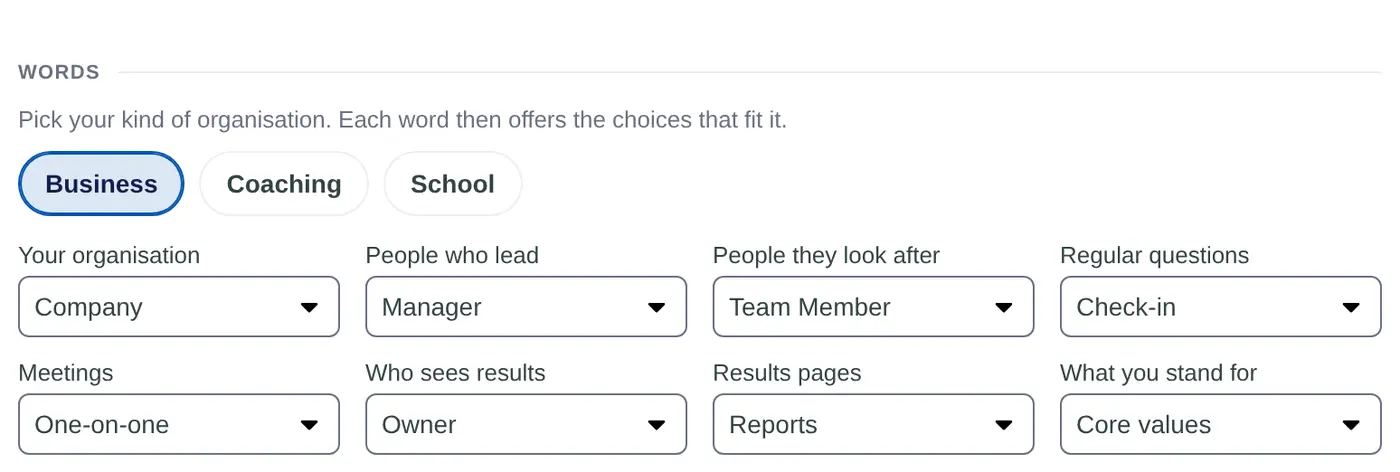
What each list changes
| On the page | Business starts with | Coaching | School |
|---|---|---|---|
| Your organisation | Company | Business | School |
| People who lead | Manager | Coach | Teacher |
| People they look after | Team Member | Client | Student |
| Regular questions | Check-in | Check-in | Reflection |
| Meetings | One-on-one | Session | Mentoring meeting |
| Who sees results | Owner | Sponsor | Principal |
| Results pages | Reports | Outcomes | Progress report |
| What you stand for | Core values | Core values | Values |
So with Business words, the menu shows Team Members and Reports. With Coaching words it shows Clients and Outcomes.
Good to know
- You can only pick from the lists. If the word you need isn't there, email [email protected].
- Changing the words doesn't change what anyone can see or do. Roles stay the same. See Roles: owner, manager, member.
- Sign up sets the words from the kind of organisation you chose. You can change them here at any time.
