Deactivate someone
Stop someone signing in without deleting anything. They stop counting towards your bill, and you can turn them back on at any time.
When someone leaves or goes on long leave, you can deactivate them. They can no longer sign in, but their goals, journal and history stay as they are. Only admins can do this.
Deactivate someone
- Open People and invites. Choose it in the menu under your organisation's name.
- Choose the person. Choose their name to open Edit user.
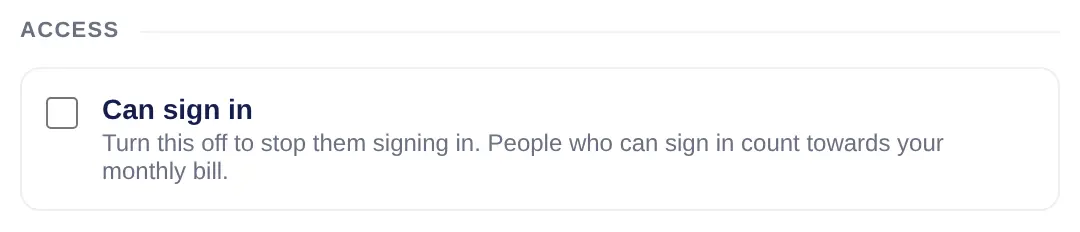
- Untick Can sign in. It's under Access, near the bottom.
- Save. Choose Save.
What happens next
- If they try to sign in, Lifetick tells them their account is inactive and to contact their account administrator.
- They show as Deactivated user on People and invites, and drop off Team Members and their manager's Today.
- They don't count towards your monthly bill from the next payment. See Team billing.
To bring them back, open them on People and invites, tick Can sign in and choose Save.
When you can't
Can sign in doesn't show:
- For yourself.
- For a manager with people reporting to them. Choose each of those people, change Reports to, and save. Then deactivate the manager.
Remove someone instead
If they've left for good, choose Remove at the bottom of Edit user. Then choose:
- Release. They leave your organisation but keep their Lifetick account and data as a personal user. If they paid for their own Premium before joining, it picks up again. Otherwise they get a two week trial, then pay or carry on with the free plan.
- Delete. Their account and data are deleted and they can't sign in. Tick I understand this can not be undone.
Choose Confirm. As with deactivating, move a manager's team to someone else first.
