Set a money goal
Track savings, debt paid off or a sales target in dollars, with tasks that add up to the amount. Money goals need Premium.
A money goal measures progress in dollars instead of words. Each task can carry an amount, and Lifetick shows how close you are to the target.
Money goals need Premium. On the Free plan, the option shows a Plus badge and opens the upgrade.
Set the target
- Open Add goal. Go to Goals and choose Add goal.
- Choose a money target. Under the measure question, choose Track a money target instead.
- Pick the kind. Under What kind of money goal?, choose Save money, Pay off debt or Hit a sales target.
- Enter the amount. Fill in the amount you want to reach by your time frame, such as $5000.
- Finish the goal. Answer the other questions and choose Create goal.
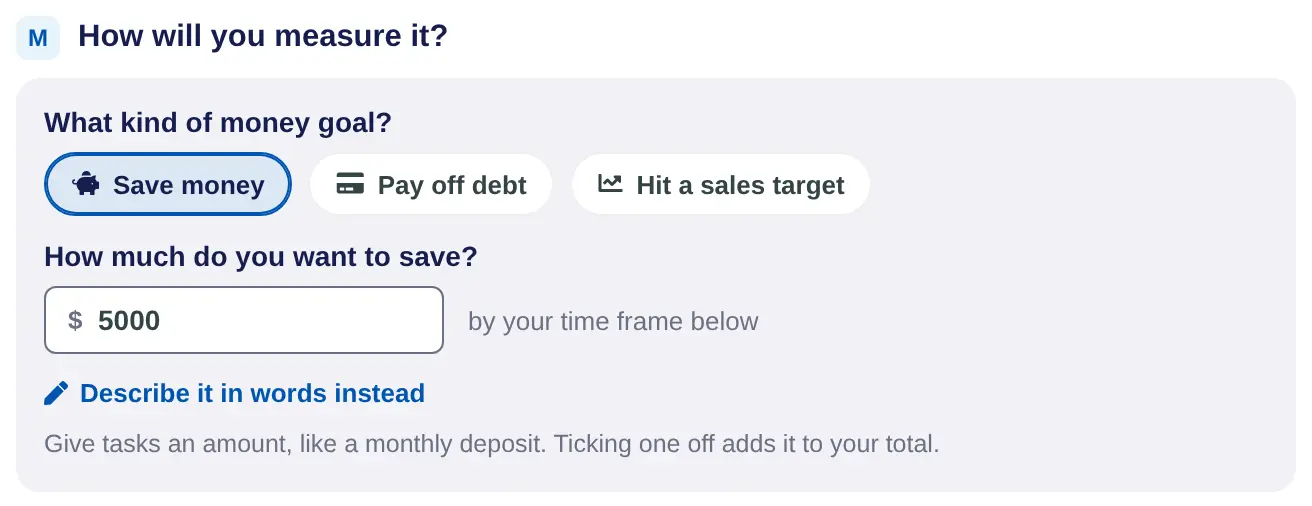
You can change the amount later with Edit. The kind of money goal can't be changed once it's saved.
Add tasks with amounts
- Add a task with details. In the goal, choose More, then Add a task with details.
- Give it a value. Enter the amount in Financial value:, such as one $400 deposit. Tick No value for a task that doesn't move the money, like opening an account.
- Save. Choose Save. A repeating task counts its amount each time.
When you tick off a task with a value, it counts toward the target.
Watch your progress
The goal shows how much you've reached, the percentage, and how much is left to go. If your tasks don't add up to the target yet, it tells you how much isn't in a task and offers Add a deposit, Add a payment or Add a sale.
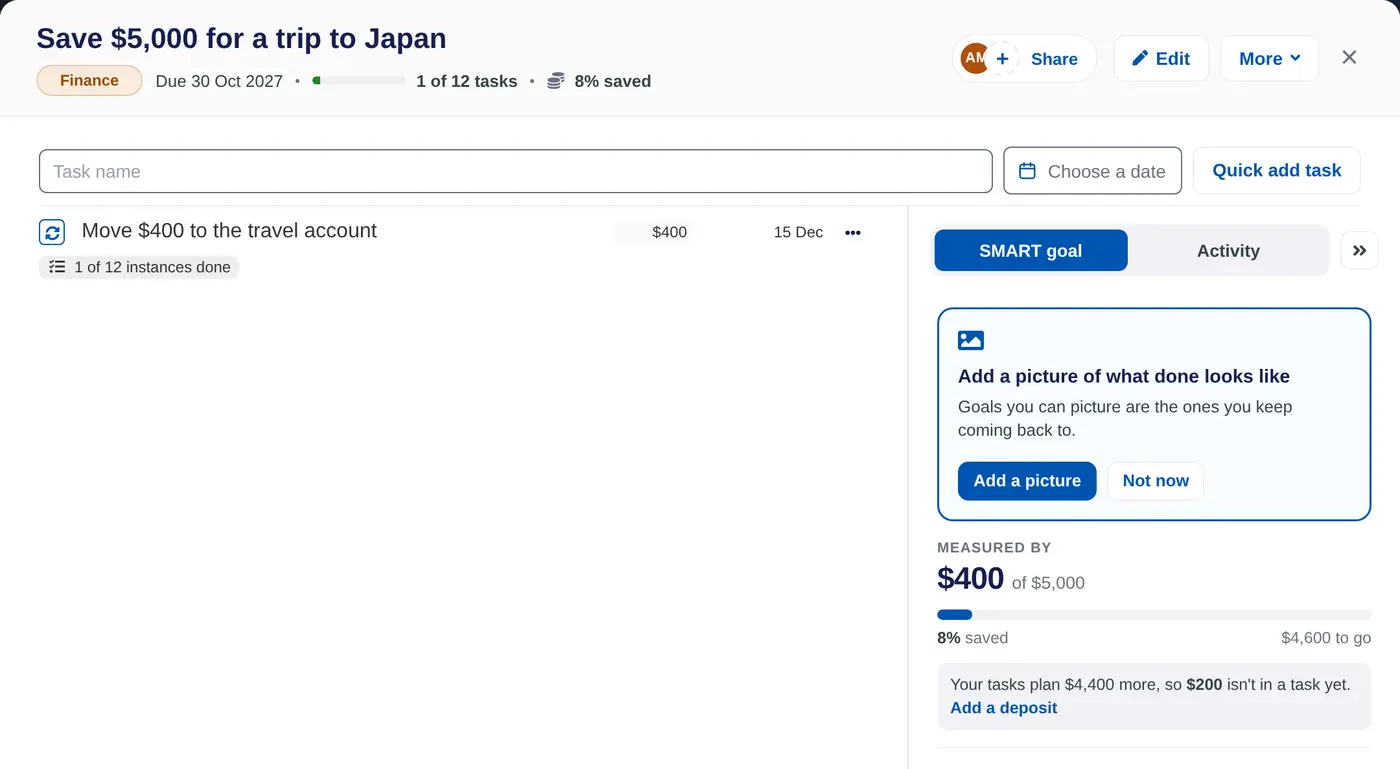
The goal's finish banner shows once you reach the target.
On iPhone, choose Reach a money target in the new goal form. On a task, turn on Task has financial value and enter the amount.
