Share a goal or add a supporter
Invite someone to cheer you on, work through the tasks with you, or own the goal with you. Or accept someone else's invite.
Goals are easier with someone in your corner. Share a goal by email and choose what they can do.
Share a goal
- Open the goal. Go to Goals and choose the goal.
- Choose Share. Choose Share next to the title, or More, then Share.
- Add their email. Under Who do you want to share it with?, enter their email address.
- Choose a role. Under What can they do?, pick one:
- Supporter: sees the goal and its tasks, cheers you on and comments.
- Collaborator: adds, changes and ticks off tasks with you.
- Co-owner: changes the goal, its tasks and who it's shared with.
- Send it. Add a message if you like, then choose Send invite.
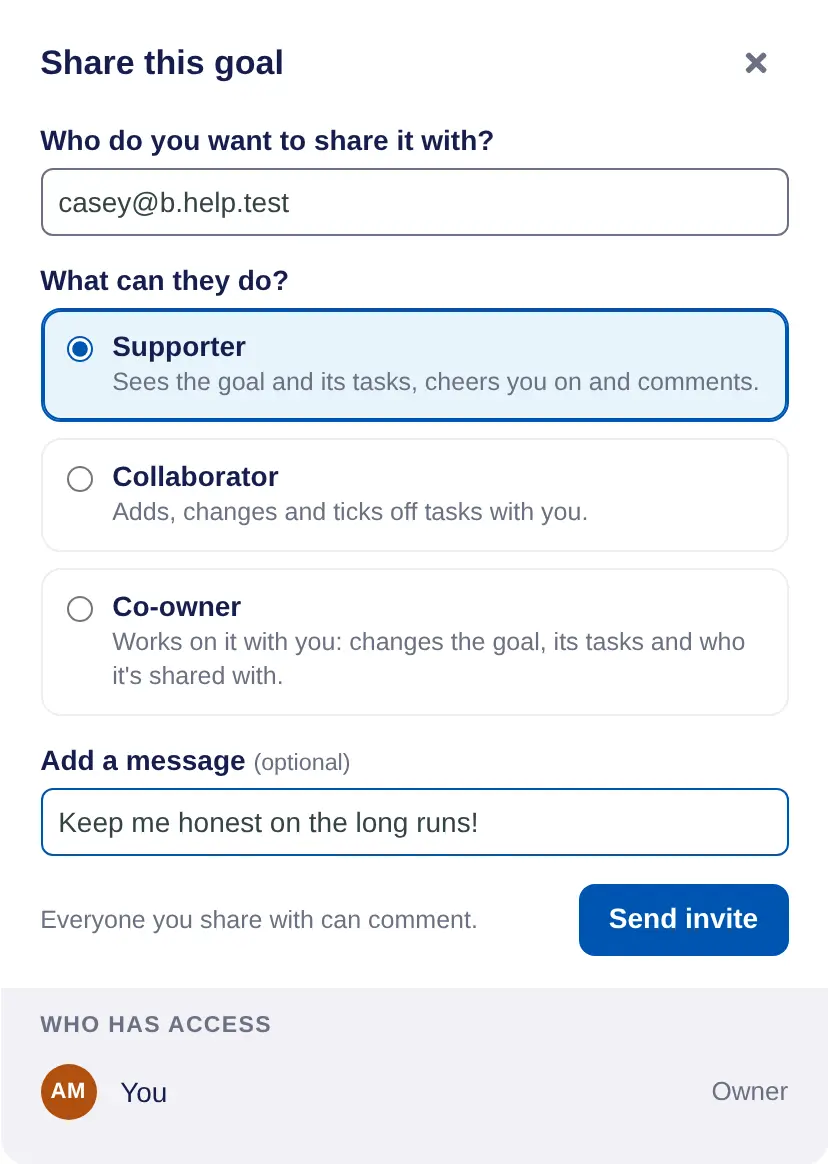
Everyone you share with can comment. The invite shows under Who has access until they accept, with Resend and Cancel. To change someone's role or take them off, choose their role, then Remove from goal. Their comments stay.
Accept an invite
- Open the email. Follow the link in the invitation.
- Accept. On Goal sharing invitation, choose Accept invitation, or Reject invitation.
- Find the goal. On Goals, choose Supporting to see goals shared with you.
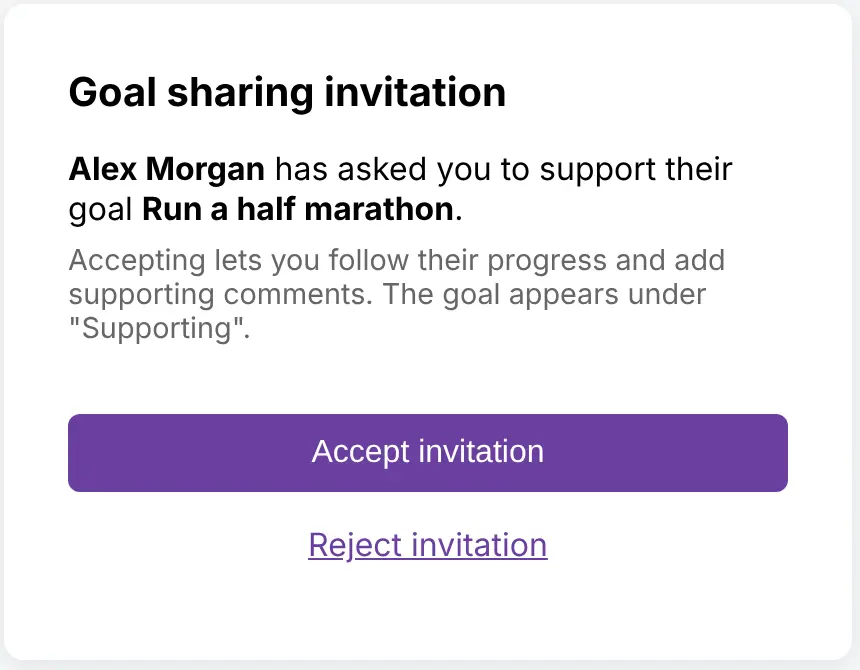
To stop seeing a shared goal, open it and choose More, then Leave this goal. Tasks assigned to you go back to everyone.
On iPhone, open the goal, tap •••, then Share this goal. Invites to you show as Shared goal with Accept and No thanks. Goals shared with you are under Supporting in the list's Show menu.
