Keep a goal private
In a team or school, keep a personal goal out of your manager's view. It stays out of their lists, reports and one-on-ones.
When you're part of a team or school, your manager or mentor can usually see your goals. Some goals are just for you. Mark those private.
This option is for team and school members. Personal accounts don't need it, because nobody else sees your goals unless you share them.
Make a goal private
- Open the goal form. Go to Goals and choose Add goal. For a goal you already have, open it and choose Edit.
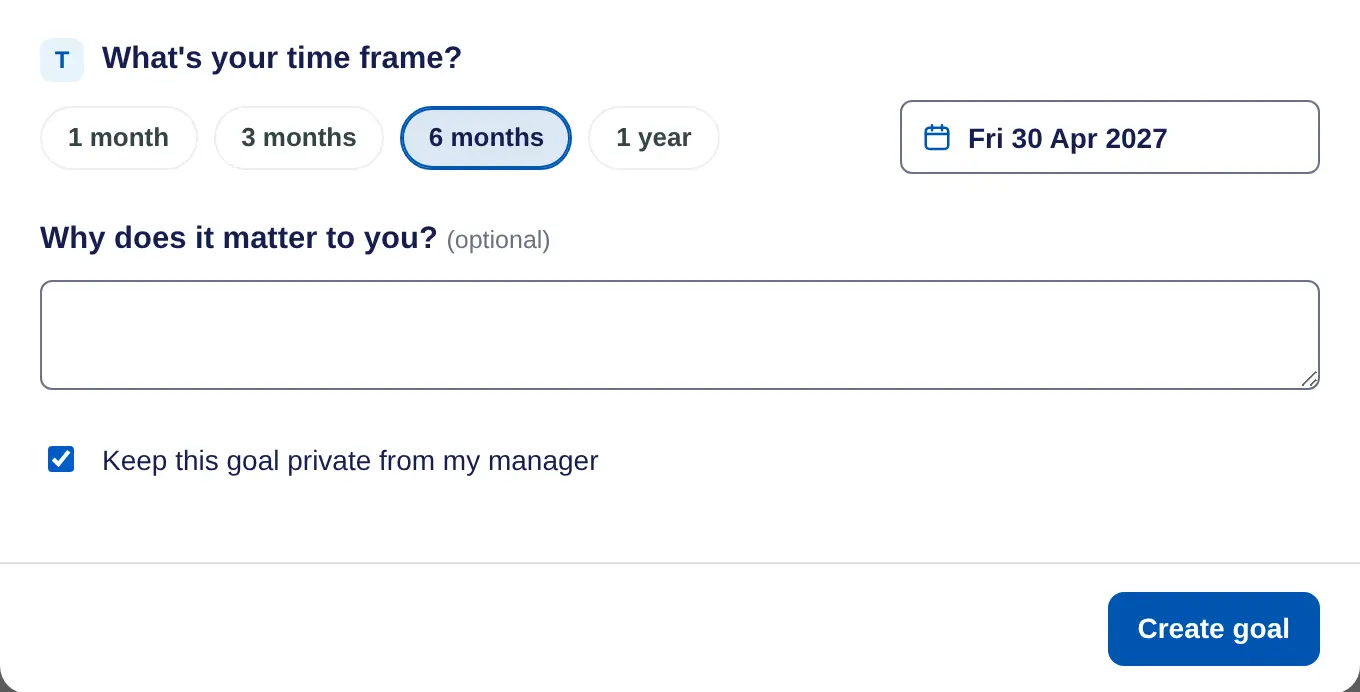
- Tick the box. At the bottom, tick Keep this goal private from my manager. Your organisation may use a different word, such as mentor or coach.
- Save. Choose Create goal or save your changes.
Private goals show a lock in your Goals list. To share the goal with your manager again, edit it and untick the box.
What your manager sees
A private goal and its tasks stay out of your manager's view of you. They aren't in their lists, counts or reports, and they don't come up in your one-on-ones.
Private only hides the goal from your manager. If you share the goal with someone yourself, they can still see it.
On iPhone there's no private option. Goals you add on iPhone aren't private, so add a private goal on the web, or open it on the web afterwards and tick the box. Editing a goal on iPhone keeps its setting.
