Complete, set aside or delete a goal
Mark a goal achieved when you get there, turn it back into a dream to set it aside, or delete it for good.
When a goal is done, mark it achieved. If now isn't the time, set it aside as a dream. If you no longer want it, delete it.
On the Free plan you can have two goals at a time, so finishing or setting one aside makes room for the next.
Mark a goal achieved
- Finish the tasks. On the web, you can mark a goal achieved once every task is done.
- Say you got there. Open the goal. Under Every task is done. Did you get there?, choose Yes, mark it achieved. If there's more to do, choose Not yet, add a task.
- Confirm. Choose Complete goal.

You can also expand the goal on the Goals list and choose Mark goal as completed.
The goal leaves your Goals list and shows in your journal as achieved. Its page then offers Write about it in your journal and Set your next goal. A completed goal can't be reopened.
For a money goal, the finish banner shows once you reach the target.
Set a goal aside
Lifetick has no pause for goals. To set one aside, turn it back into a dream.
- Open the goal. Choose More, then Convert to dream.
- Confirm. The goal moves to Dreams and keeps its tasks for when you pick it up again.
Shared goals can't be turned into dreams. You can also push the dates out instead. See Move due dates in bulk.
Delete a goal
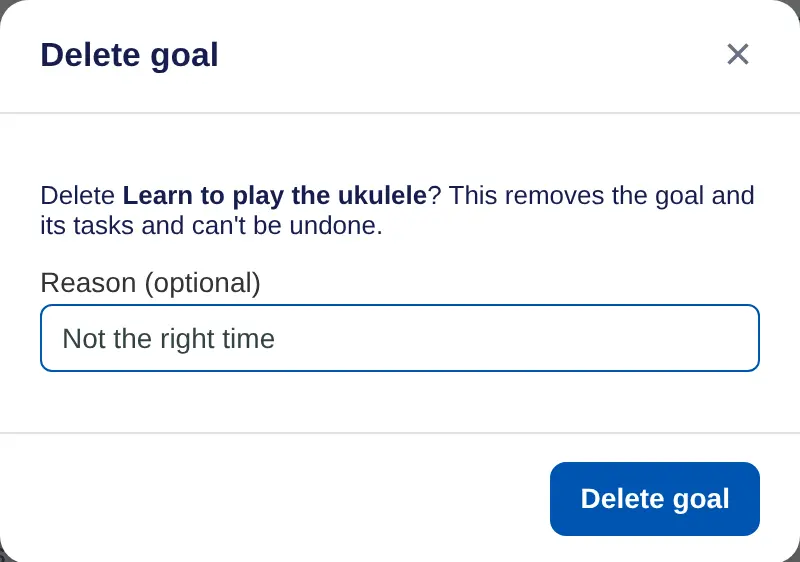
- Open the goal. Choose More, then Delete goal.
- Confirm. Add a Reason (optional) if you like, then choose Delete goal. This removes the goal and its tasks, and can't be undone.
On iPhone, tap ••• on the goal, then Complete goal or Delete. Or swipe or long press a goal in the list. On iPhone you can complete a goal at any time, even with tasks open.
